How to run Claude Code in a Tmux popup window with persistent sessions

Hey, what's up? It's Takuya.
I've been using Claude Code in my terminal workflow. At first, I was running it at the right side of my terminal using tmux, but I found it not useful because it was too narrow to display messages and diffs. I often had to press <Prefix>+z to maximize the pane, which was painful.
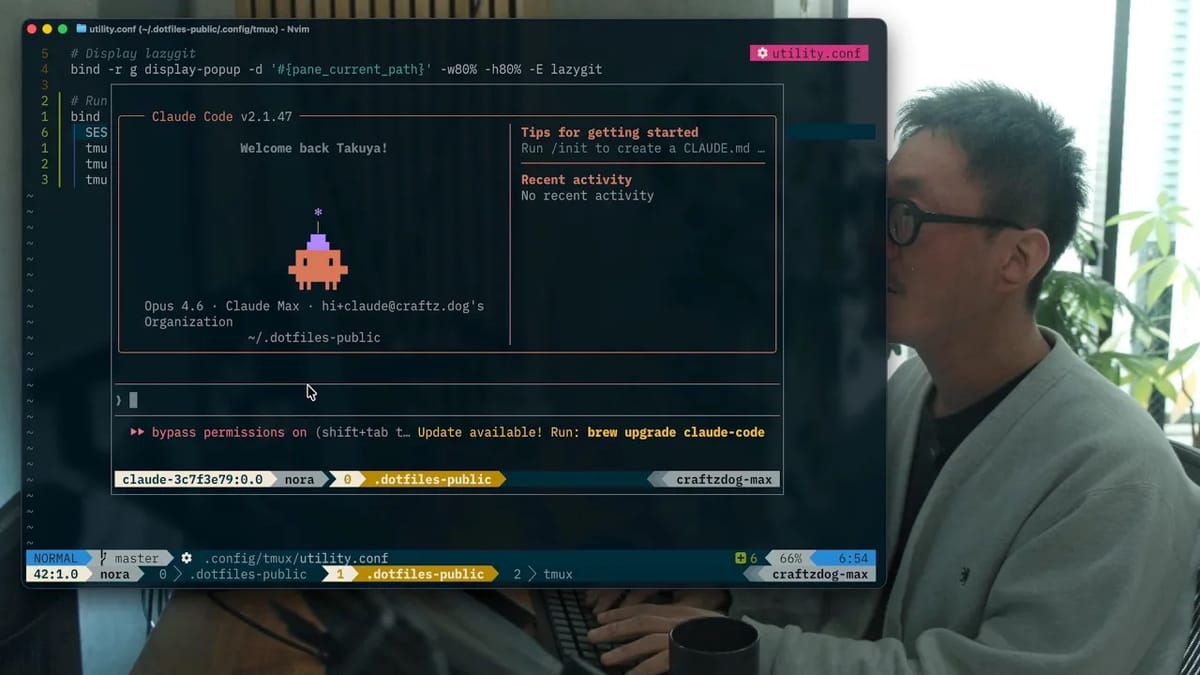
Next, I started using popup windows to run Claude Code — press a keybinding, get a Claude Code session, dismiss it, and pick up right where you left off.
In this article, I'd like to share how to configure tmux to accomplish it.
Popup windows can't keep its sub-process
You can display popup windows with display-popup command, which is great for quick-access tools.
I've been using it for quickly checking git status with lazygit like this:
bind -r g display-popup -d '#{pane_current_path}' -w80% -h80% -E lazygit
My prefix key is ctrl-t, so it is bound to ctrl-t g.
This works perfectly for LazyGit because it's a short-lived process — you open it, stage some changes, commit, and close it.
However, there is a problem with running Claude Code (or any other AI tools) in tmux popup windows.
You want to keep a conversation going across multiple interactions.
If you bind Claude Code the same way:
bind -r y display-popup -d '#{pane_current_path}' -w80% -h80% -E claude
...you'll find that closing the popup also kills the Claude Code process.
There's no way to dismiss the popup without quitting the session.
You'd have to start fresh every time, which defeats the purpose.
Create a dedicated tmux session for each working directory
The trick is to run Claude Code in a separate tmux session, and then attach to that session inside the popup, which means that you are going to use nested tmux sessions.
When you close the popup, the session keeps running in the background.
Here's the full configuration:
bind -r y run-shell '\
  SESSION="claude-$(echo #{pane_current_path} | md5sum | cut -c1-8)"; \
  tmux has-session -t "$SESSION" 2>/dev/null || \
  tmux new-session -d -s "$SESSION" -c "#{pane_current_path}" "claude"; \
  tmux display-popup -w80% -h80% -E "tmux attach-session -t $SESSION"'
Let's break down what this does:
- Generate a unique session name from the working directory
SESSION="claude-$(echo #{pane_current_path} | md5sum | cut -c1-8)"
This takes the current pane's working directory, hashes it with MD5, and uses the first 8 characters as a session identifier. So you get session names like claude-a1b2c3d4. The key insight here is that each directory gets its own Claude Code session.
- Create the session if it doesn't already exist
tmux has-session -t "$SESSION" 2>/dev/null || \
tmux new-session -d -s "$SESSION" -c "#{pane_current_path}" "claude --dangerously-skip-permissions"
The has-session check prevents creating duplicate sessions. If a session for this directory already exists, it skips creation entirely. Otherwise, it creates a new detached session (-d) with the working directory set to your current path (-c), running Claude Code as the initial command.
- Attach to the session in a popup
tmux display-popup -w80% -h80% -E "tmux attach-session -t $SESSION"
This opens an 80%-sized popup that attaches to the background session.
You can change it as you like.
When you close the popup (with <prefix> d or your detach keybinding), the session stays alive. Yippee!
My dotfiles are available here:
 craftzdog
That's it. A very simple and intuitive hack.
I hope it's helpful for your AI coding workflow :)
Have a productive day!