Effective Neovim setup for agentic coding towards 2027

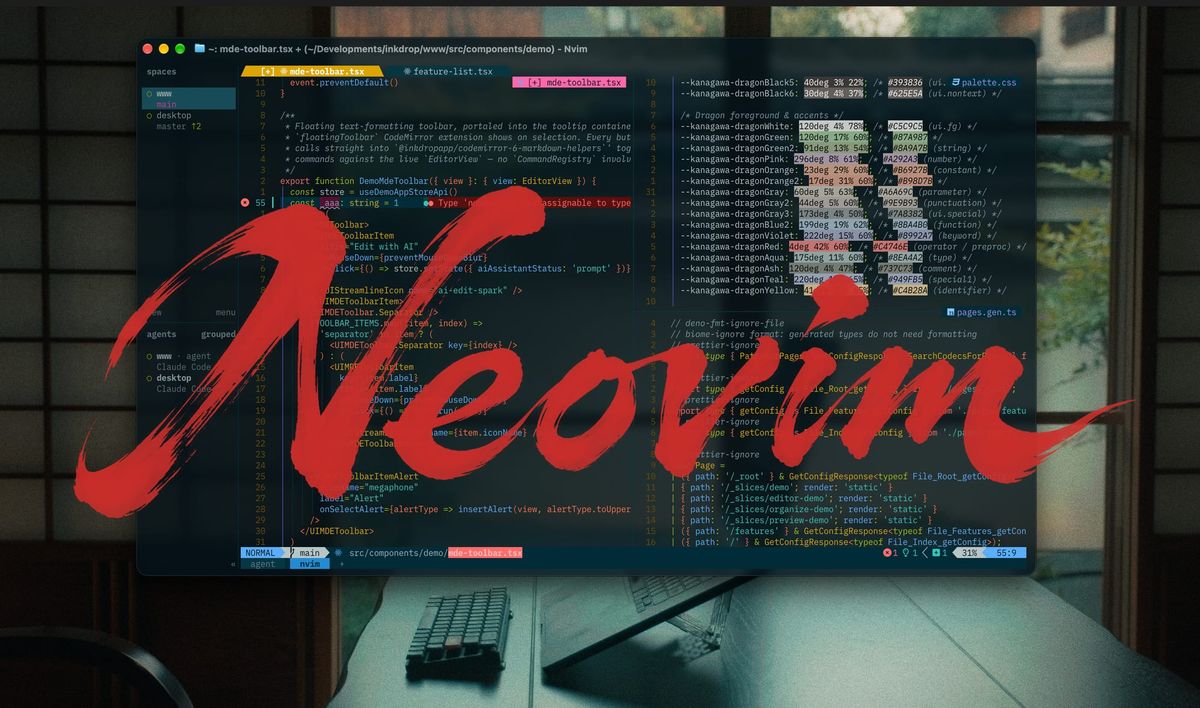
Hey, what's up? It's Takuya here. In this article, I'm going to share my new Neovim setup, which I built from scratch with an AI agent.
Watch the video tutorial on YouTube:
My Dotfiles is here:

Moved off LazyVim
In the previous setup I shared in 2023, I used LazyVim to avoid maintaining plugins, and it's been working great.
Thanks to the LazyVim community, I could easily keep my plugins up to date and tweak the settings.
But the more I customized it, the more unstable it got.
Fixing errors after every LazyVim update was kind of annoying.
Meanwhile, recent Neovim releases have added a lot of built-in features that used to need plugins:
vim.pack: a built-in plugin managervim.lsp.enableandafter/lsp/<name>.lua: LSP setup with almost no boilerplate- ui2: a new message UI
:restart: reloads Neovim and restores the session
So I decided to build a fresh setup on top of them.
Neovim for agentic coding
The agentic coding paradigm shift has arrived, and I've adapted to an agentic workflow.
These days, I mainly use Neovim to review code, rather than to write it by hand.
To be honest, I don't know how long I'll keep using it, since workflows are changing so fast.
But I thought it would be interesting to share my current setup.
Writing the config in plain English
Tweaking a Neovim config is super easy now, because you just tell your agent what you want.
So instead of writing Lua, I wrote a spec of my config in English on Inkdrop, and fed it to my agent step by step via the MCP server.
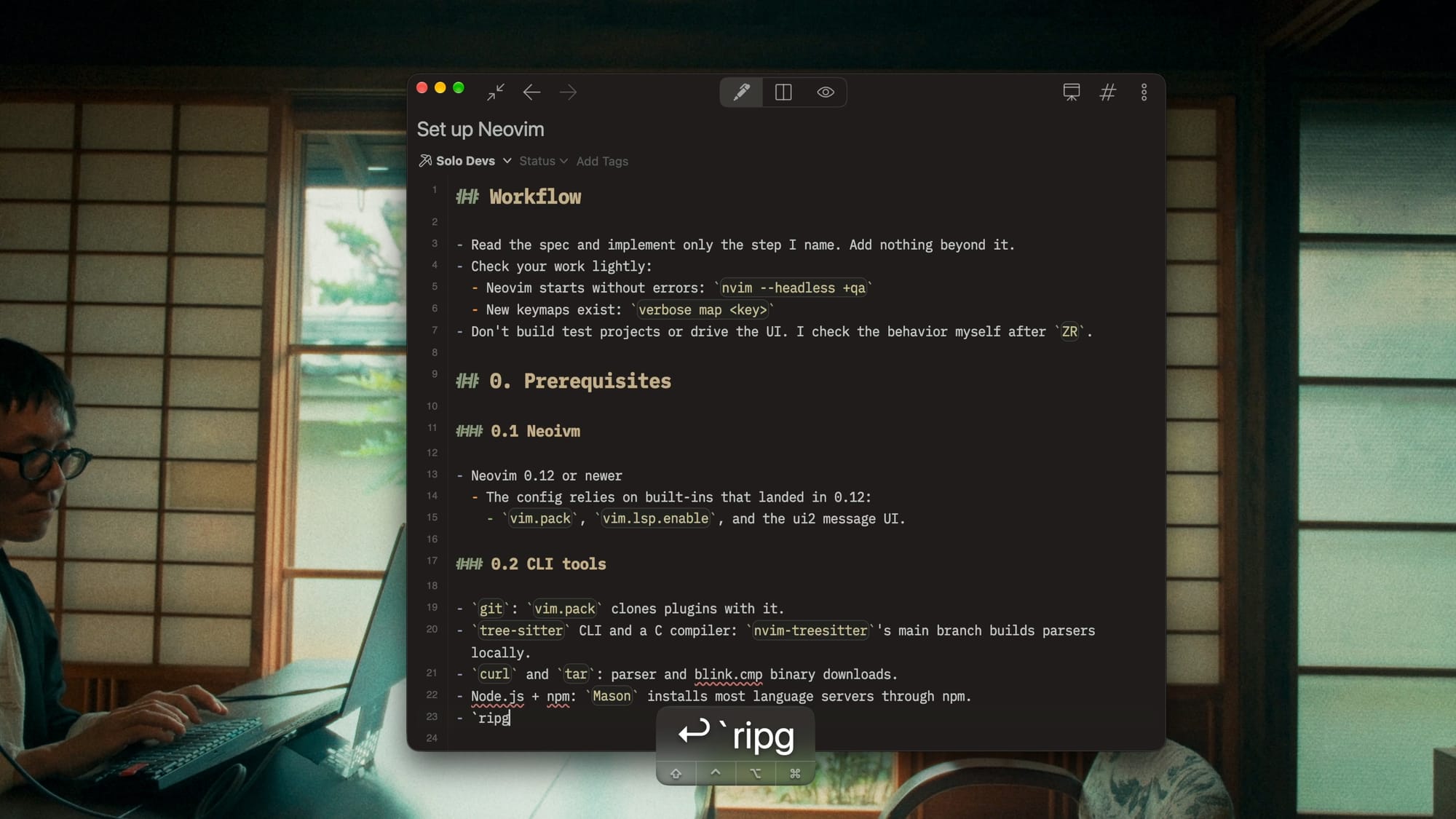
The spec describes what I want and why, not how.
The agent figures out the Lua.
The workflow
- Write a step of the spec.
- Ask the agent to implement only that step.
- Reload Neovim with
:restartand check the behavior myself. - Review the diff and commit.

Prompt for the agent
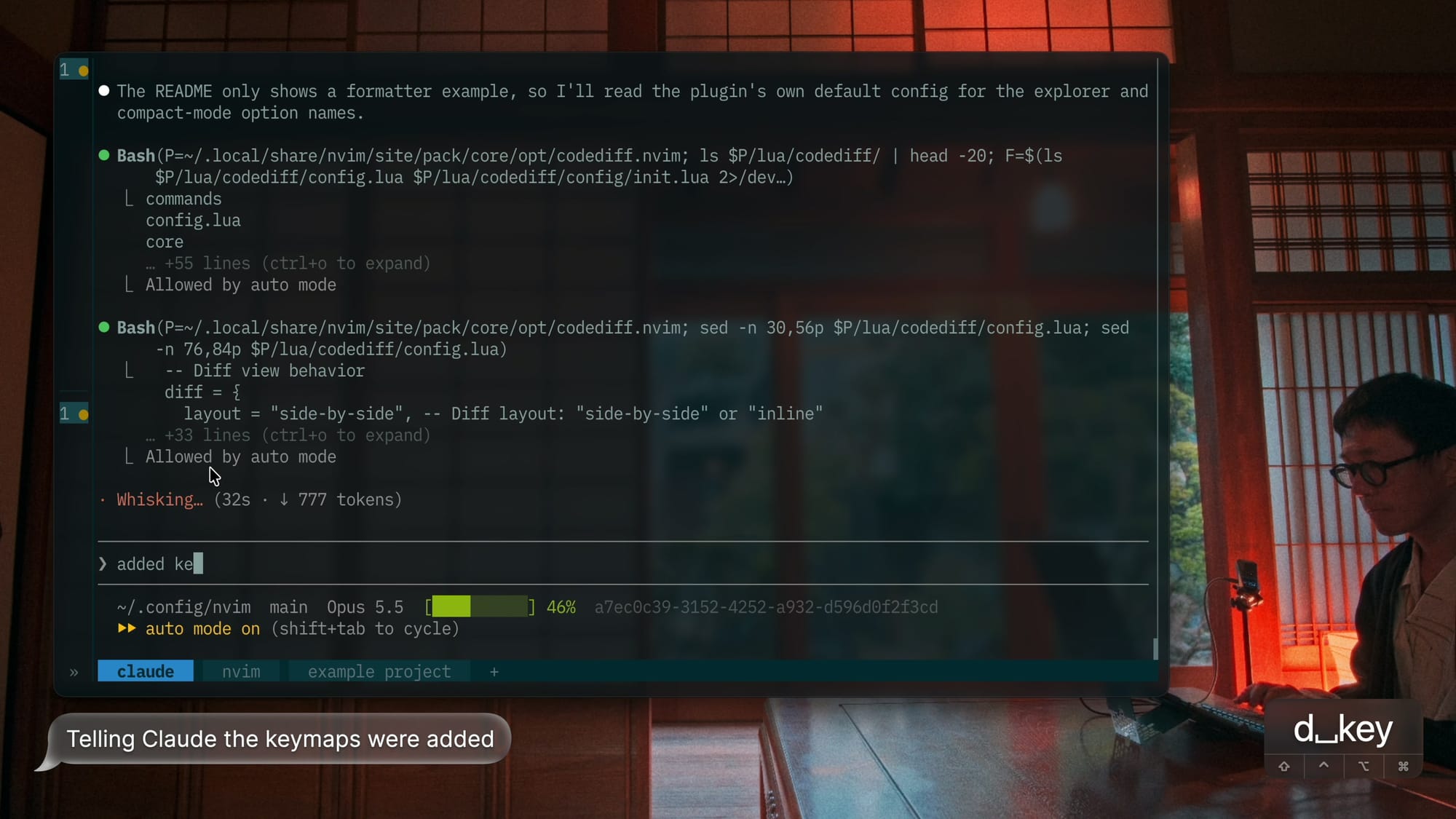
I gave the agent these rules:
- Read the spec and implement only the step I name. Add nothing beyond it.
- Check your work lightly:
- Neovim starts without errors:
nvim --headless +qa - New keymaps exist:
:verbose map <key>
- Neovim starts without errors:
- Don't build test projects or drive the UI. I check the behavior myself after the restart.
Reloading the config
I mapped ZR to :restart.
- Neovim restarts in the same terminal and restores the windows, tabs, and buffers.
- Save first with
:wa. Unsaved buffers block the restart.- Or use
:restart +qall!to discard them.
- Or use
- After a step that adds a plugin,
vim.packshows an install prompt. Confirm it. - Run the agent in a separate terminal split, not in a
:terminalinside Neovim, since the restart kills it.
Below is the whole spec, step by step.
Feel free to copy it and feed it to your own agent, and tweak it to your taste.
0. Prerequisites
0.1 Neovim
- Neovim 0.12 or newer.
- The config relies on built-ins that landed in 0.12:
vim.pack,vim.lsp.enable, and the ui2 message UI.
- The config relies on built-ins that landed in 0.12:
0.2 CLI tools
| Tool | Why |
|---|---|
git |
vim.pack clones plugins with it |
tree-sitter CLI + C compiler |
nvim-treesitter's main branch builds parsers locally |
curl and tar |
Parser and blink.cmp binary downloads |
| Node.js + npm | Mason installs most language servers through npm |
ripgrep and fd |
Back the text search and the file finder |
lazygit and git-delta |
The git UI and its diff renderer |
0.3 Font
- A Nerd Font. I use PlemolJP Console NF.
- Icons appear in the tabline, statusline, completion menu, and file explorer, so a plain font shows boxes.
0.4 Git
- The config folder is a git repository.
.gitignorelistsnvim-pack-lock.json.
1. Foundation
1.0 Start a session
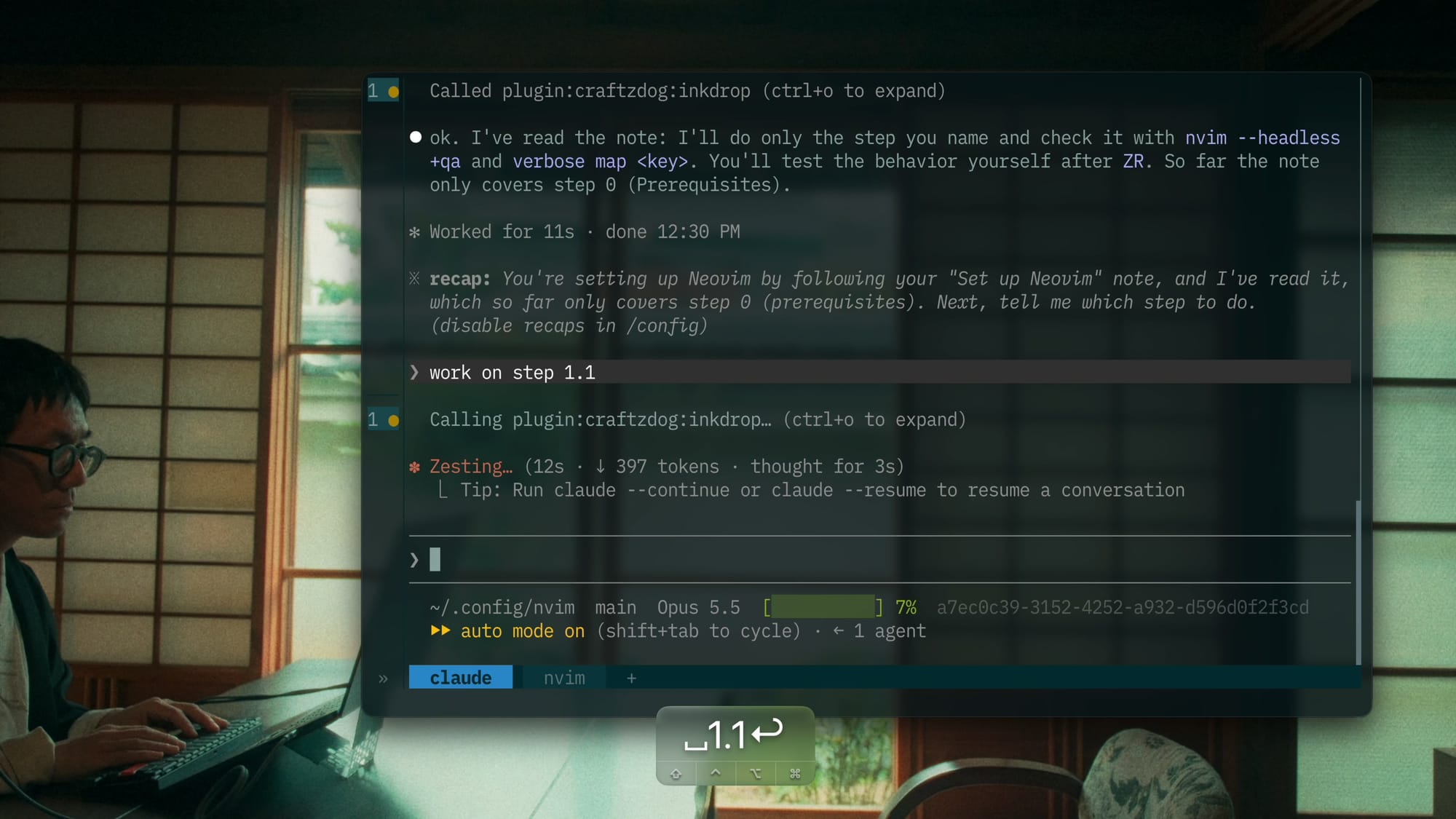
I started by telling the agent where the spec lives:
I'd like to make a neovim setup. I'm going to write a spec in this note: <link to the spec>
When you are ready, say so
1.1 Layout
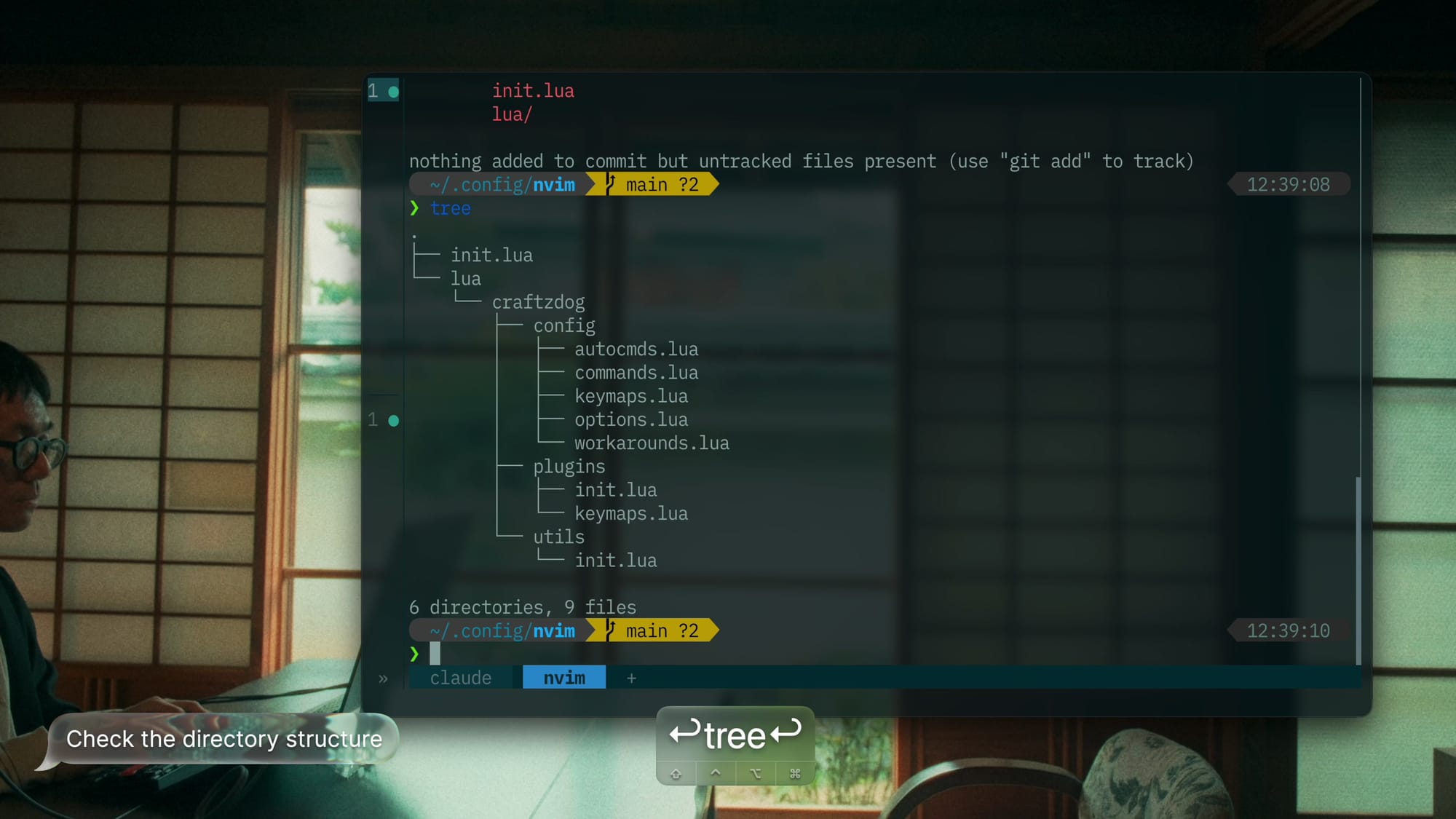
~/.config/nvim: the config root folderinit.lua: enablesvim.loaderfor faster startup, then requires these files directly, in order:craftzdog.utils, assigned to the globalCraftzdogcraftzdog.config.options,.keymaps,.autocmds,.commands,.workaroundscraftzdog.plugins
lua/craftzdog/: my config lives hereutils/: shared helpersinit.lua: returns a table of helper modules, empty for now.- Later steps add modules like
utils/editor.lua, exposed aseditor.
- Later steps add modules like
config/: plain Neovim settings, one file per name aboveplugins/init.lua: installs every plugin in onevim.pack.addcall, then requires each group file- Each plugin group gets its own file next to it (e.g.
ui.lua), which configures its plugins withrequire("<plugin>").setup({ ... }). keymaps.lua: every keymap that uses a plugin, required last so all plugins are set up first. Group files hold no keymaps.
- Lua files are indented with tabs, formatted by stylua with its defaults.
1.2 Leader and basics
- Leader and local leader are Space.
- Mouse is off. Keyboard-only.
- Clipboard is
unnamedplus, so yank and paste go through the system clipboard. - Indent is 2 spaces:
tabstop,shiftwidth, andsofttabstopare all 2expandtabandsmartindentare on
-counts as part of a word, sofoo-baris one word.- Fits CSS classes and kebab-case names.
1.3 Look of the buffer
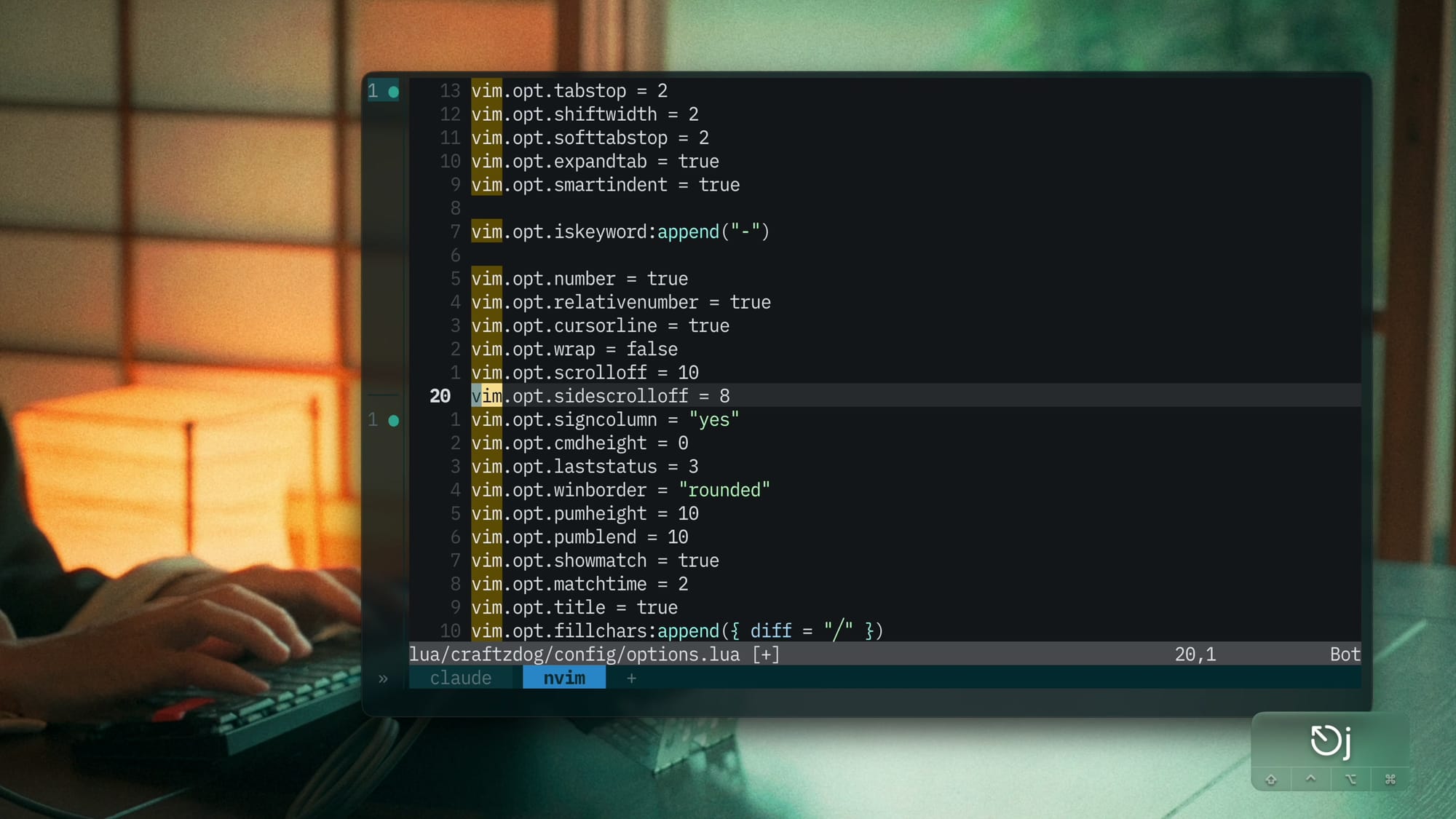
- Hybrid line numbers:
number+relativenumberon, so the cursor line shows its real number. cursorlineon. No wrap,scrolloff10,sidescrolloff8.signcolumnalways on.- Text doesn't jump when git or diagnostic marks appear.
cmdheight0 and one global statusline (laststatus3).- Maximizes vertical space.
- Rounded borders on every float (
winborder). - Popup menu: at most 10 rows, slightly see-through (
pumheight10,pumblend10). - Matching brackets flash briefly (
showmatchon,matchtime2). titleon, so the terminal tab shows the file name.- Diagonal
╱fill in empty diff areas.
1.4 Search, files, undo
ignorecase+smartcaseon: case-insensitive until a capital letter is typed.pathadds**, so:findsearches subfolders.:completion:wildmodeislongest:full,fullwildignoreskips*/node_modules/*,*.o,*.obj,*.pyc,*.class,*.jar
swapfileandwritebackupoff.- Persistent undo (
undofileon) lives in~/.cache/nvim/undodir.- Undo survives closing the file. Swap files only get in the way.
- Snappier timing:
updatetime300,timeoutlen500,ttimeoutlen0.- Faster CursorHold events, and key sequences resolve without lag.
Try it:
/craftzdogininit.lua, then/Craftzdog:find opt<Tab>- Edit
init.lua,:wq, reopen it, thenu
1.5 Splits and folds
- New splits open below and to the right.
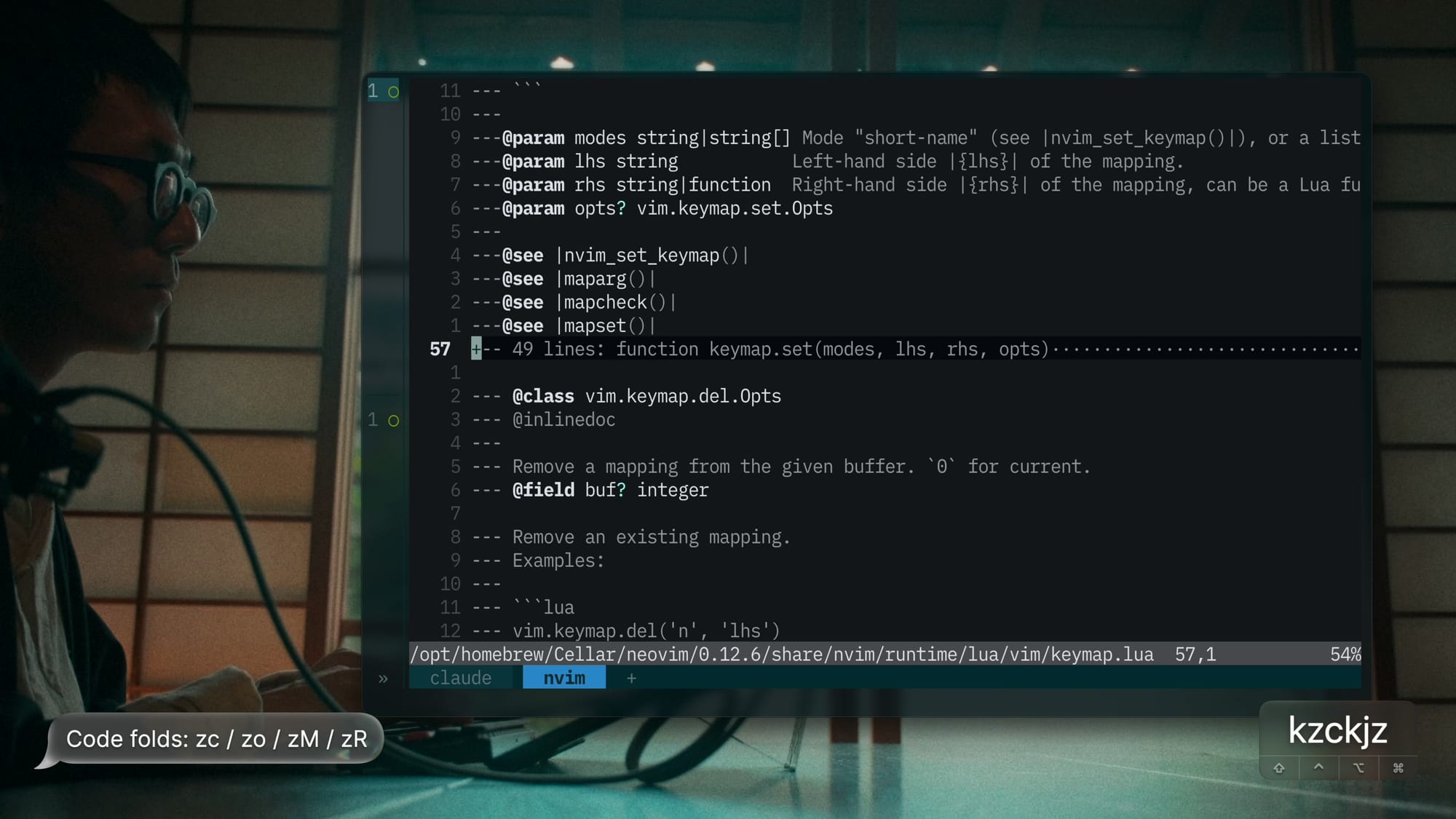
- Folds come from Treesitter, with
foldlevel99.- Everything starts unfolded, and folds can still be closed by syntax.
Try it:
:split,:vsplit:e $VIMRUNTIME/lua/vim/keymap.lua, thenzc/zoinside a functionzM/zR
1.6 Messages
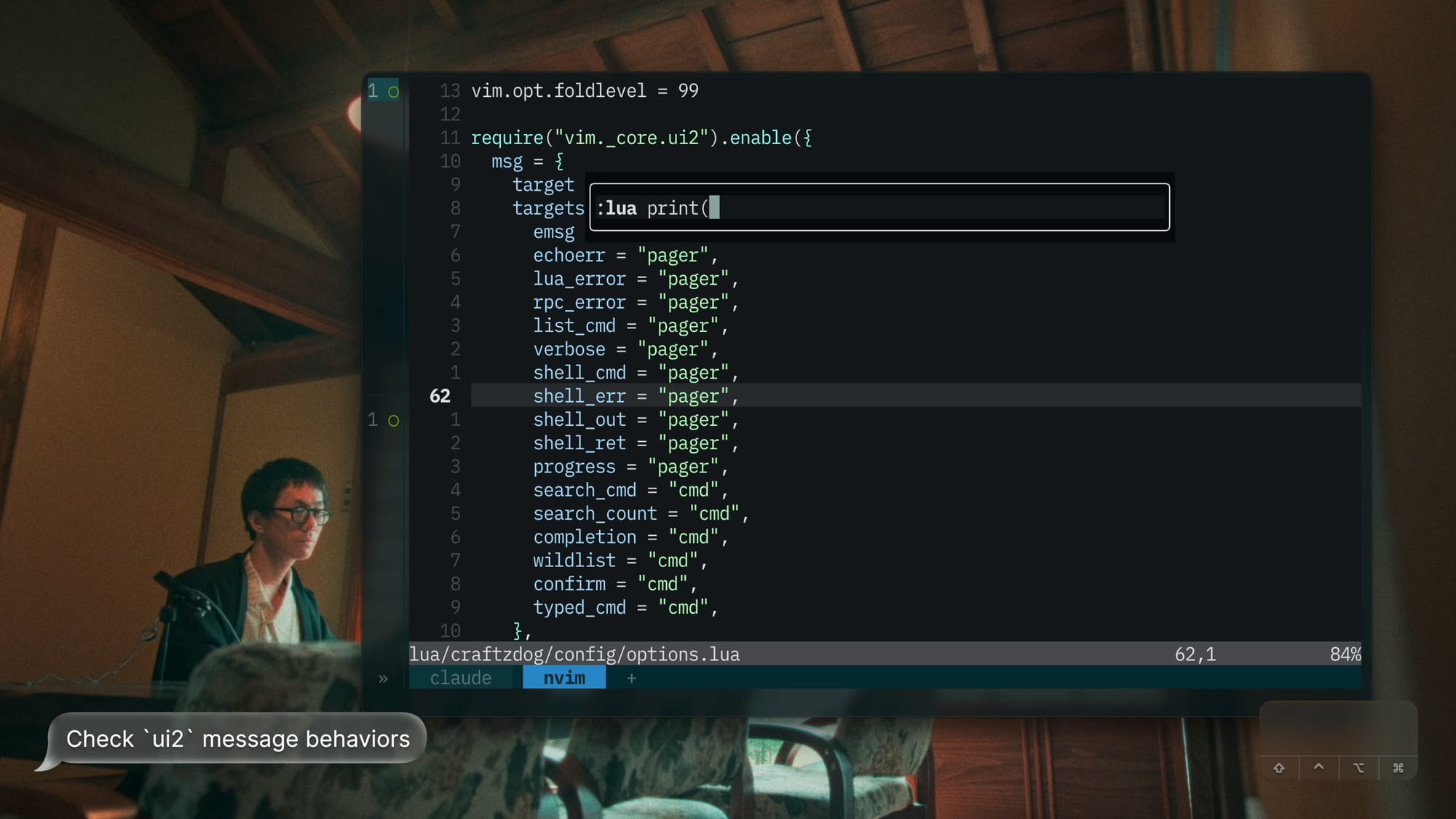
Neovim 0.12's experimental ui2 handles messages. It's turned on at the end of config/options.lua.
- Short messages: corner popup up to 30% of the screen tall, gone after 5 seconds.
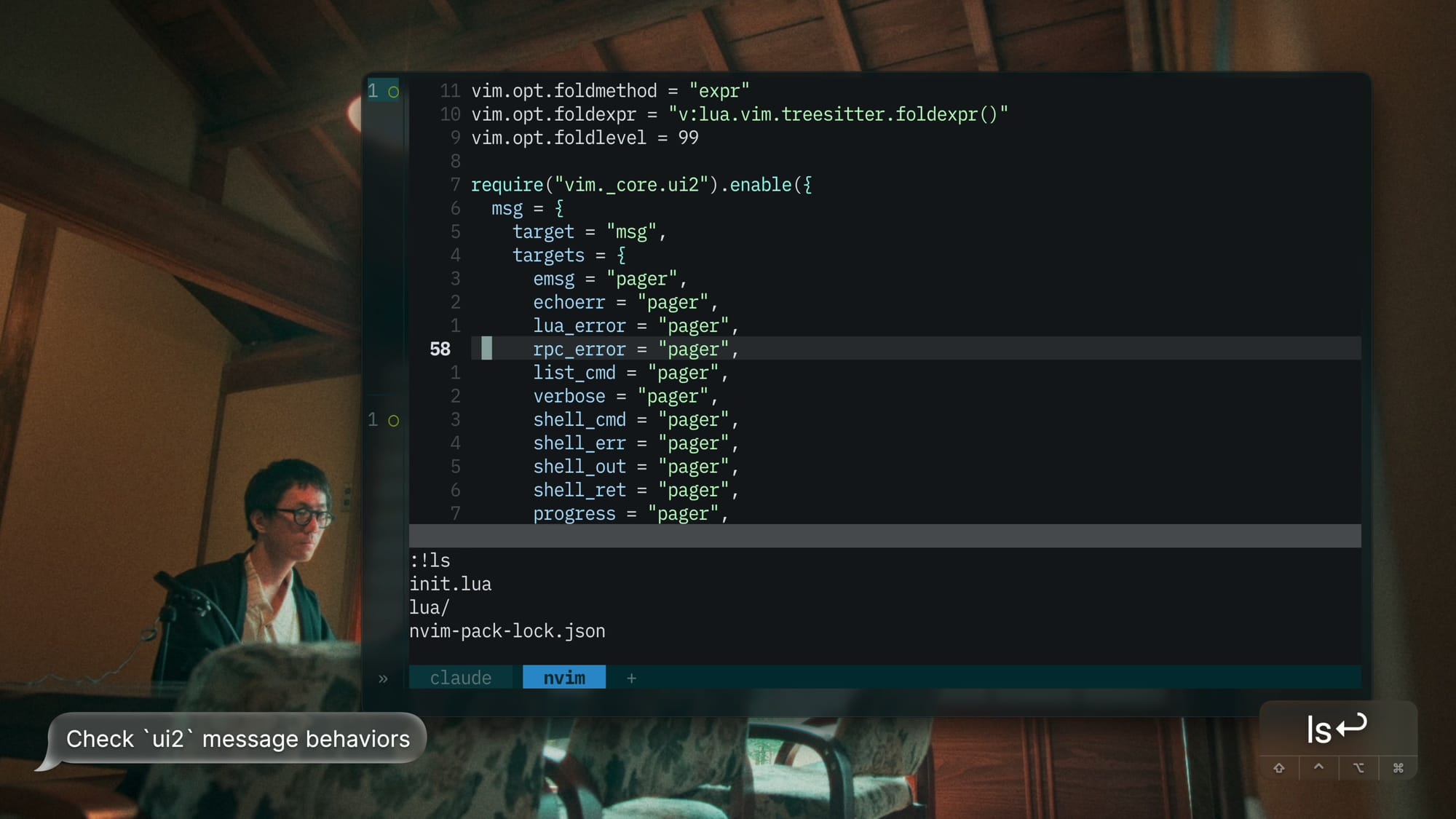
- Long output (errors,
:ls,:verbose, shell commands, progress): a scrollable pager up to half the screen. - Search count, search pattern, completion,
:completion list, and confirm prompts stay in the command line. - Output of a command I type goes to the command line too, whatever its kind.
- It expands over the bottom of the screen until the next key.
Entermoves it into the pager.
tiny-cmdline.nvim shows the : command line as a floating box, centered left to right, 20% from the top. It's set up in plugins/ui.lua.
- With
cmdheight0, the command line needs somewhere to appear, and near the top is where the eyes already are.
Try it:
:echo "hi":lua print("hi"):foo:!ls:verbose set ts?
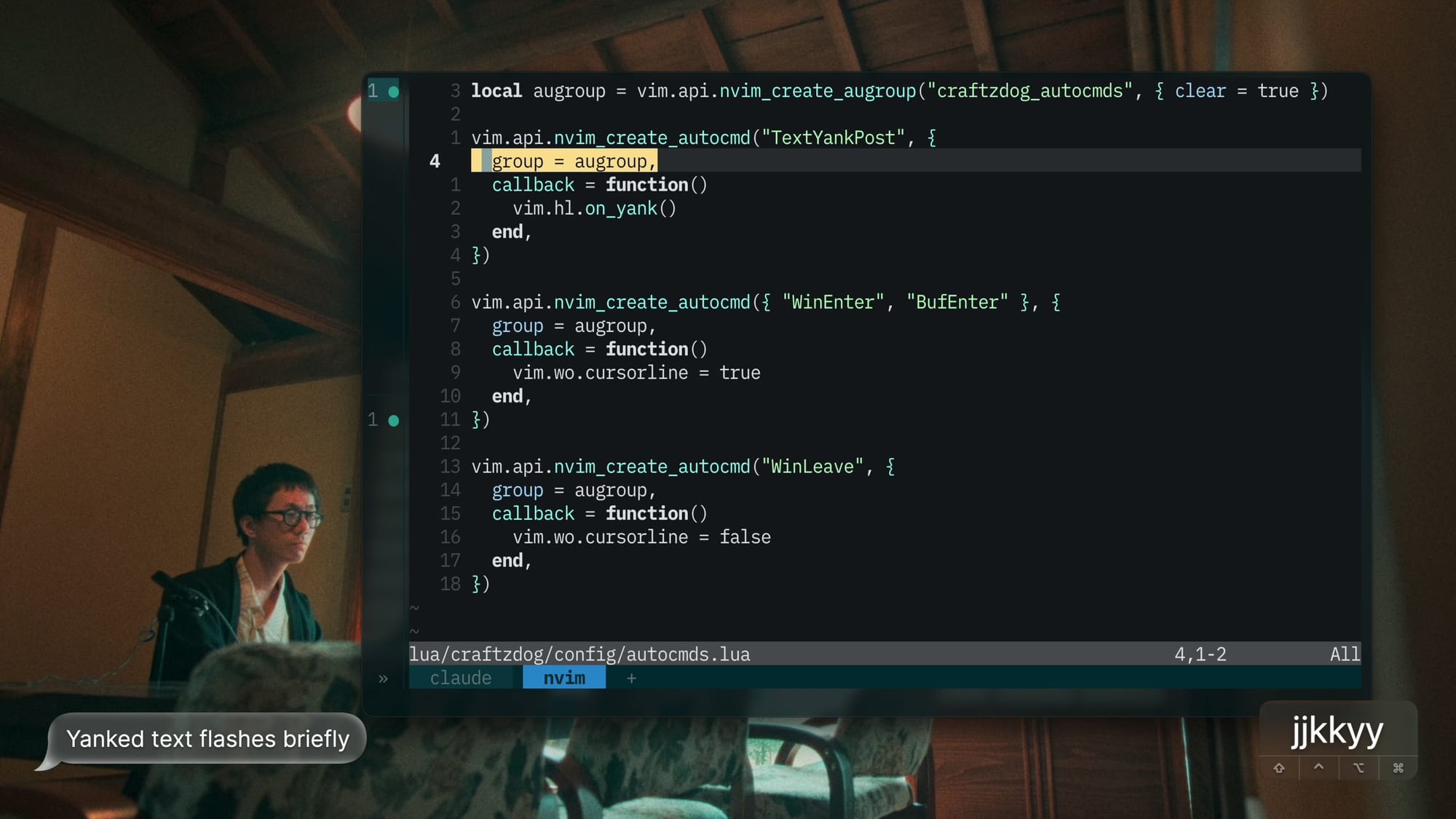
1.7 Autocmds
- Yanked text flashes briefly.
- Only the active window shows the cursorline.
1.8 Core keymaps
| Keys | Action | Notes |
|---|---|---|
x |
Deletes without copying | |
<leader>d, <leader>c, <leader>p |
Delete, change, and paste without touching the yank register | The yanked text stays safe while editing around it. |
dw |
Deletes the word backwards without copying | |
+ / - |
Increment and decrement numbers | |
<C-a> |
Selects all | |
te |
Opens a new tab | |
Tab / Shift-Tab |
Cycle tabs | |
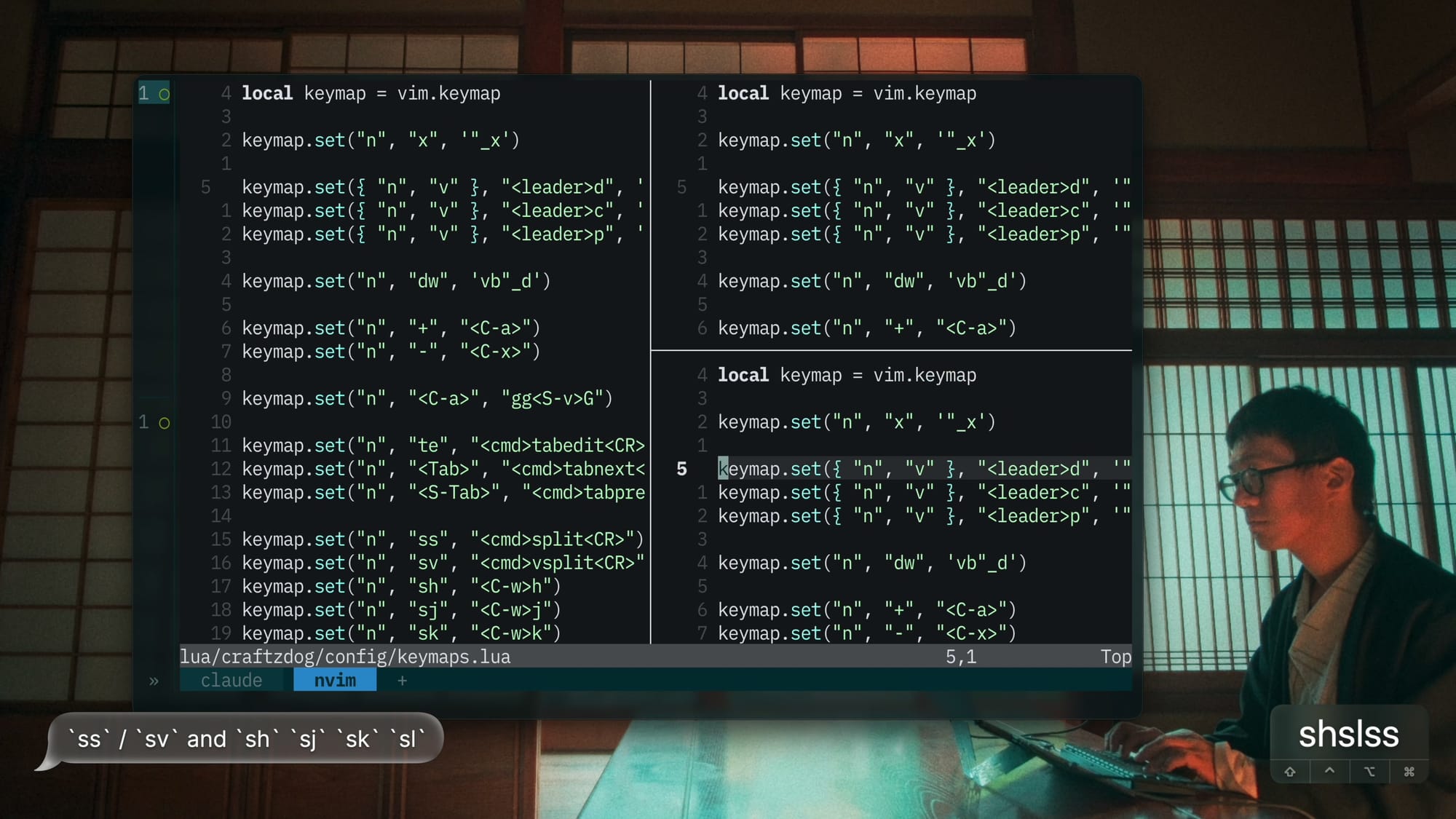
ss / sv |
Split | Short, home-row window control. |
sh sj sk sl |
Move between windows | Short, home-row window control. |
<C-m> |
Jumps forward in the jump list | <C-i> is the same key as Tab in the terminal, and Tab is taken by tab switching. |
<leader>o / <leader>O |
Open a line below or above without continuing a comment (o<Esc>^Da) |
1.9 Close hidden buffers
<leader>bdcloses every hidden buffer, except unsaved ones.
2. Look & feel
2.1 Colorscheme
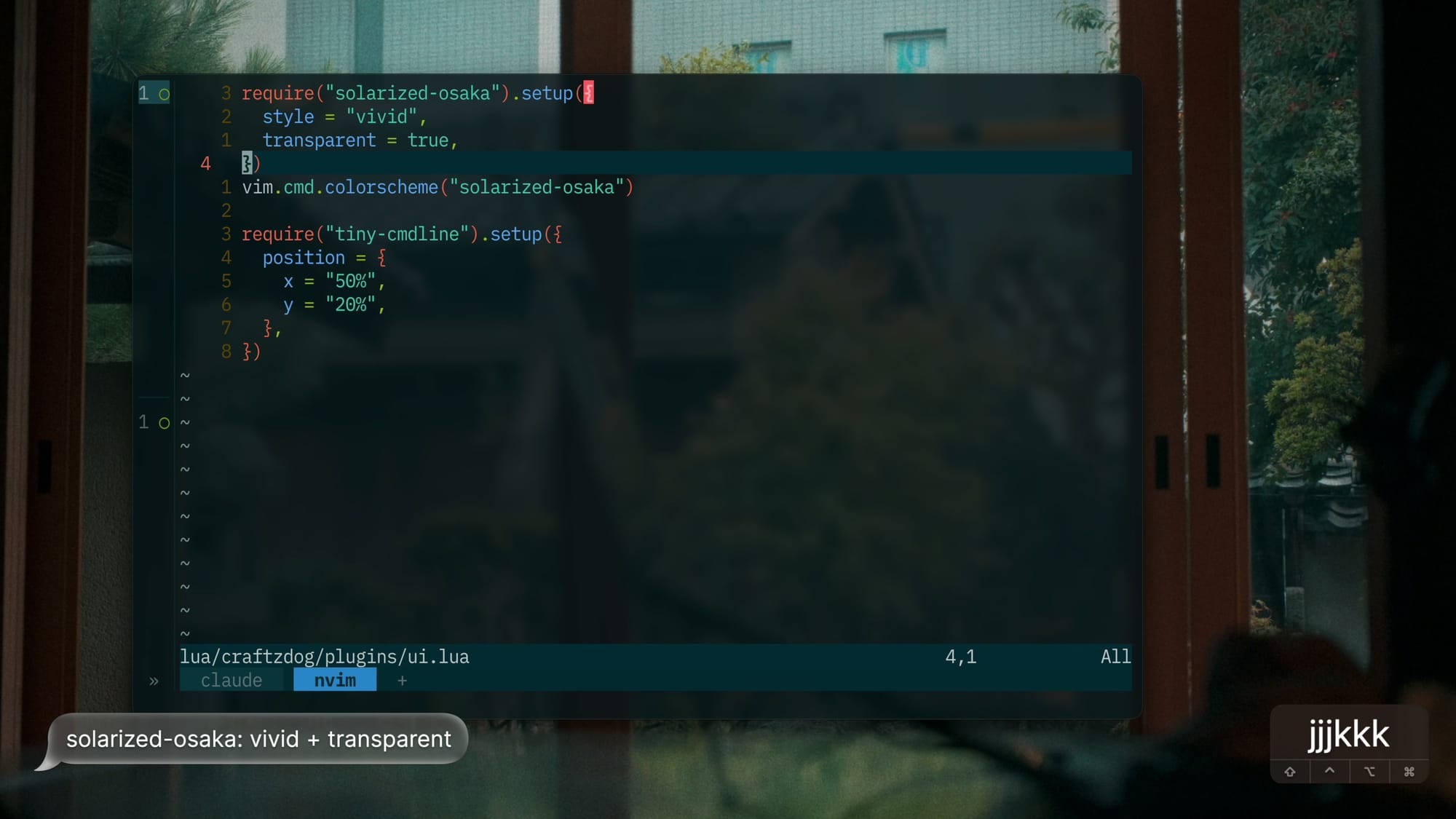
- solarized-osaka,
vividstyle, transparent background.- The terminal's blur shows through, and the palette matches the Ghostty theme.

2.2 Icons
- mini.icons, also mocking nvim-web-devicons.
- One icon source for every plugin.
2.3 Tabline
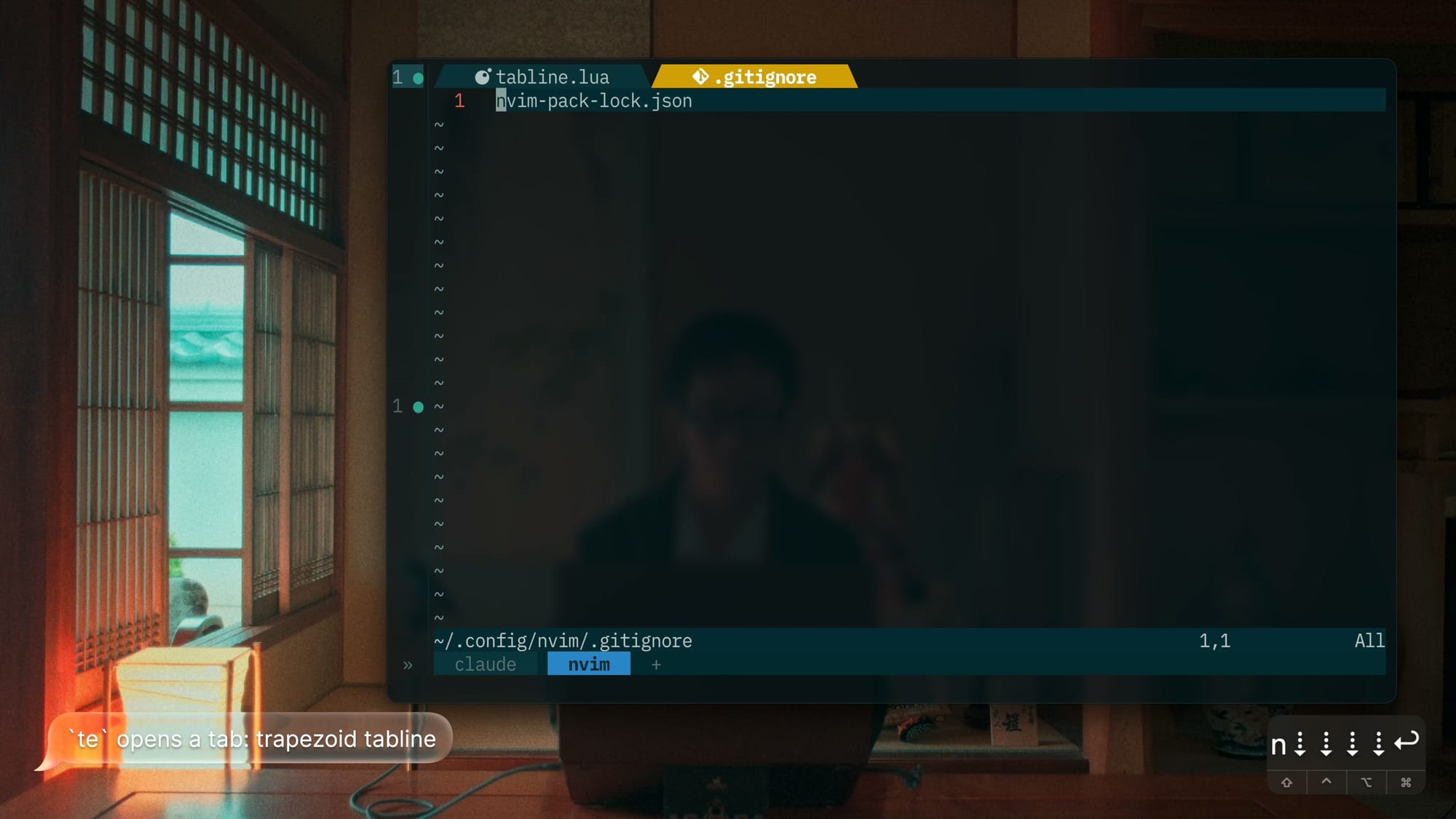
A custom tabline in utils/tabline.lua, with no plugin.
- Shown only when there are 2 or more tabs.
- Each tab shows the active window's file name with its icon, padded with 3 spaces, between slanted separators.
- Both edges slant outward going down, so each tab is a trapezoid, wider at the bottom:

- Colors from the solarized-osaka palette:
- Active tab: bold base4 text on yellow
- Inactive tab: base0 on base02
- The icon takes the tab's text color.
- The separators take the tab's color on a transparent background, and so does the empty area after the last tab.
- Names longer than 20 characters are cut to 17 plus
…. - Unsaved tabs show
[+]before the icon. - Terminals show
[Terminal]and empty buffers[No Name], with no icon.
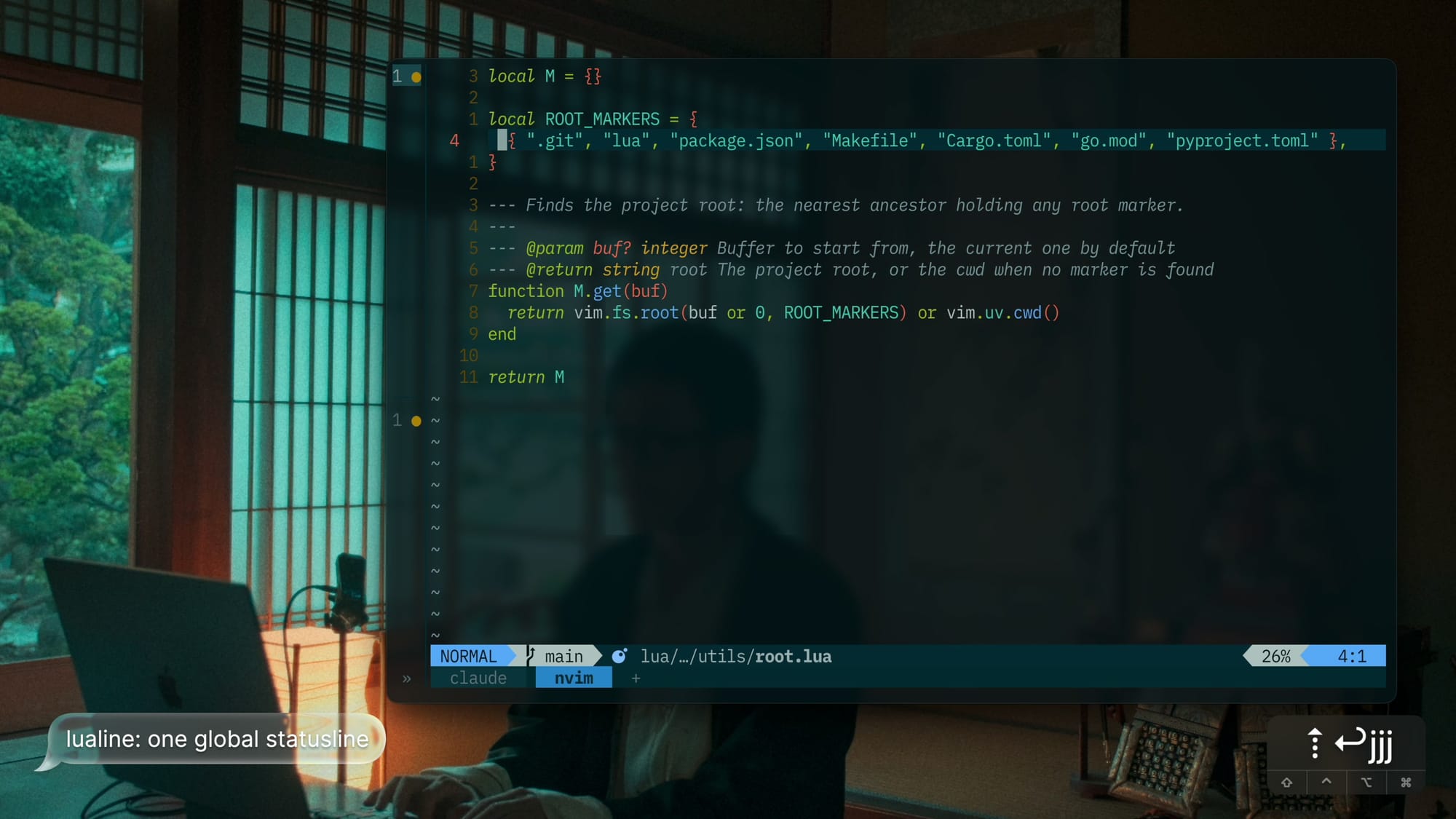
2.4 Statusline
lualine, one global bar, theme auto.
| Section | Content |
|---|---|
| a | Mode |
| b | Git branch |
| c | Project root name (only when it differs from cwd), filetype icon, pretty path |
| x | Macro recording register, diagnostics, git diff counts |
| y | Progress |
| z | line:column |
- The project root is found by searching upward for
.git,lua,package.json,Makefile,Cargo.toml,go.mod, orpyproject.toml. - Refreshes on cursor move and macro start/stop.
- The recording indicator replaces the hidden command line.
- The result would look like:

Result:
2.5 Window labels
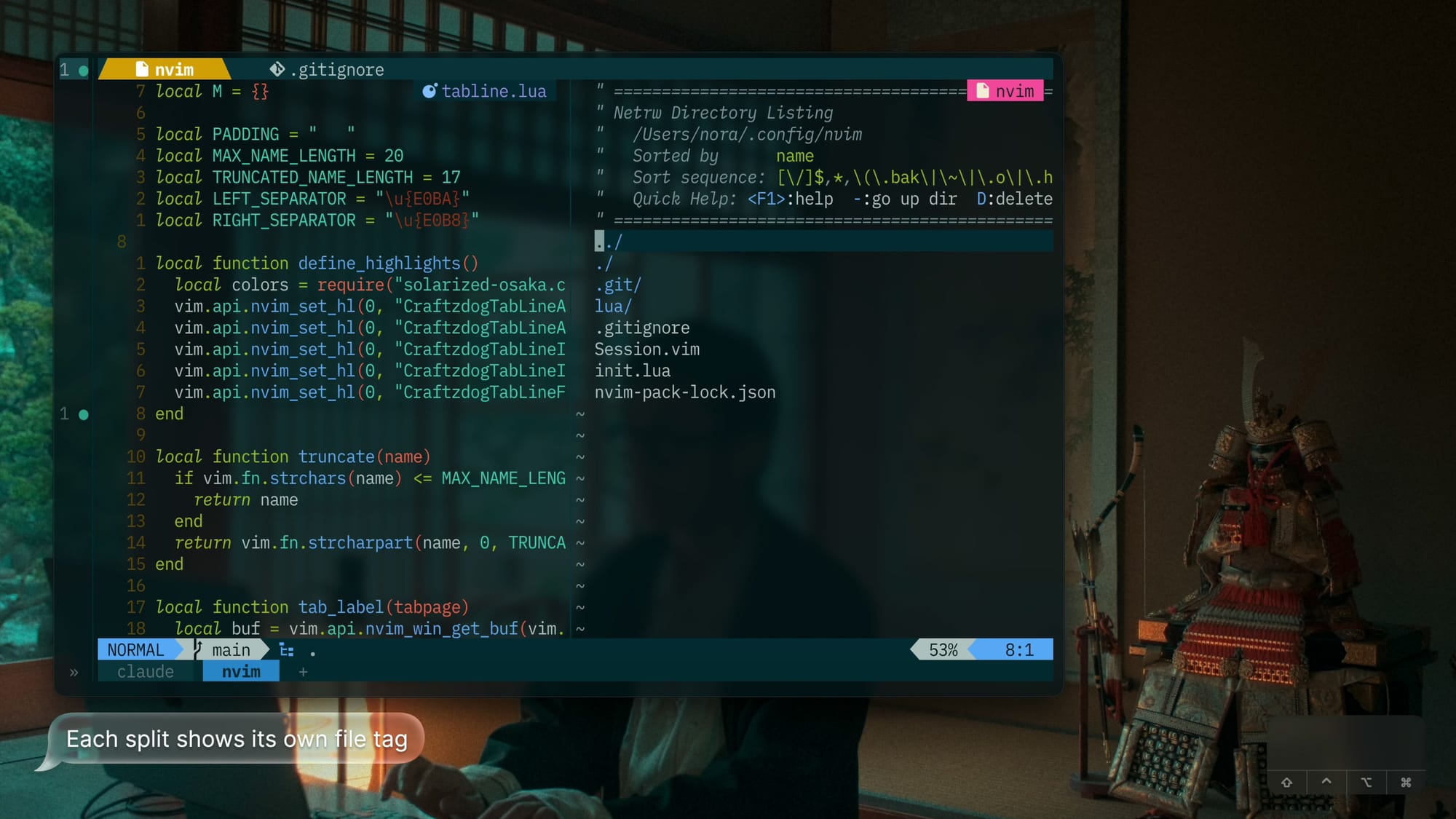
- incline.nvim shows a filename tag with an icon in the top-right corner of each window, plus
[+]when unsaved.- With a single global statusline, each split still needs to say which file it holds.
- The tag hides when the cursor reaches its line.
2.6 Snacks
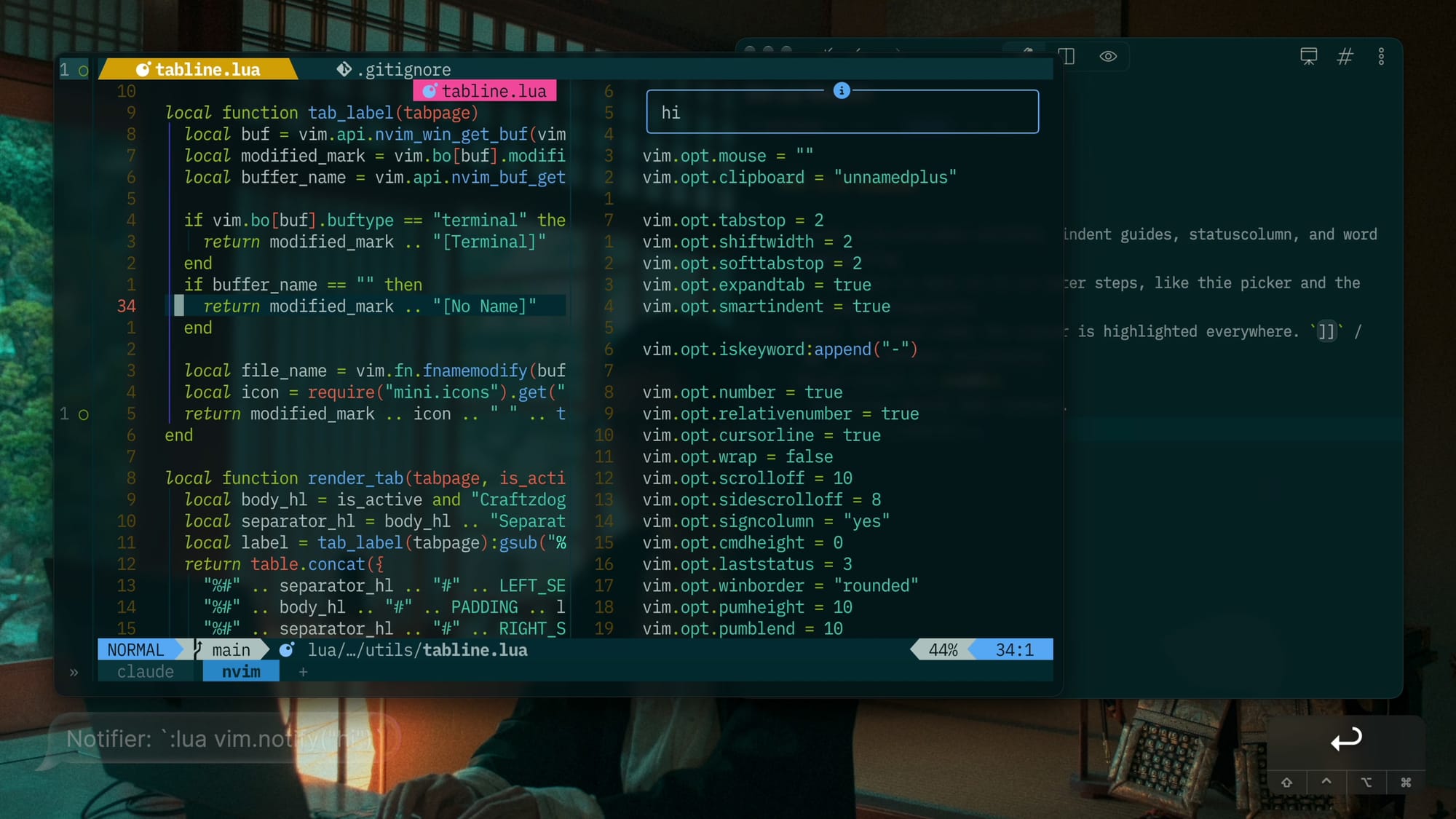
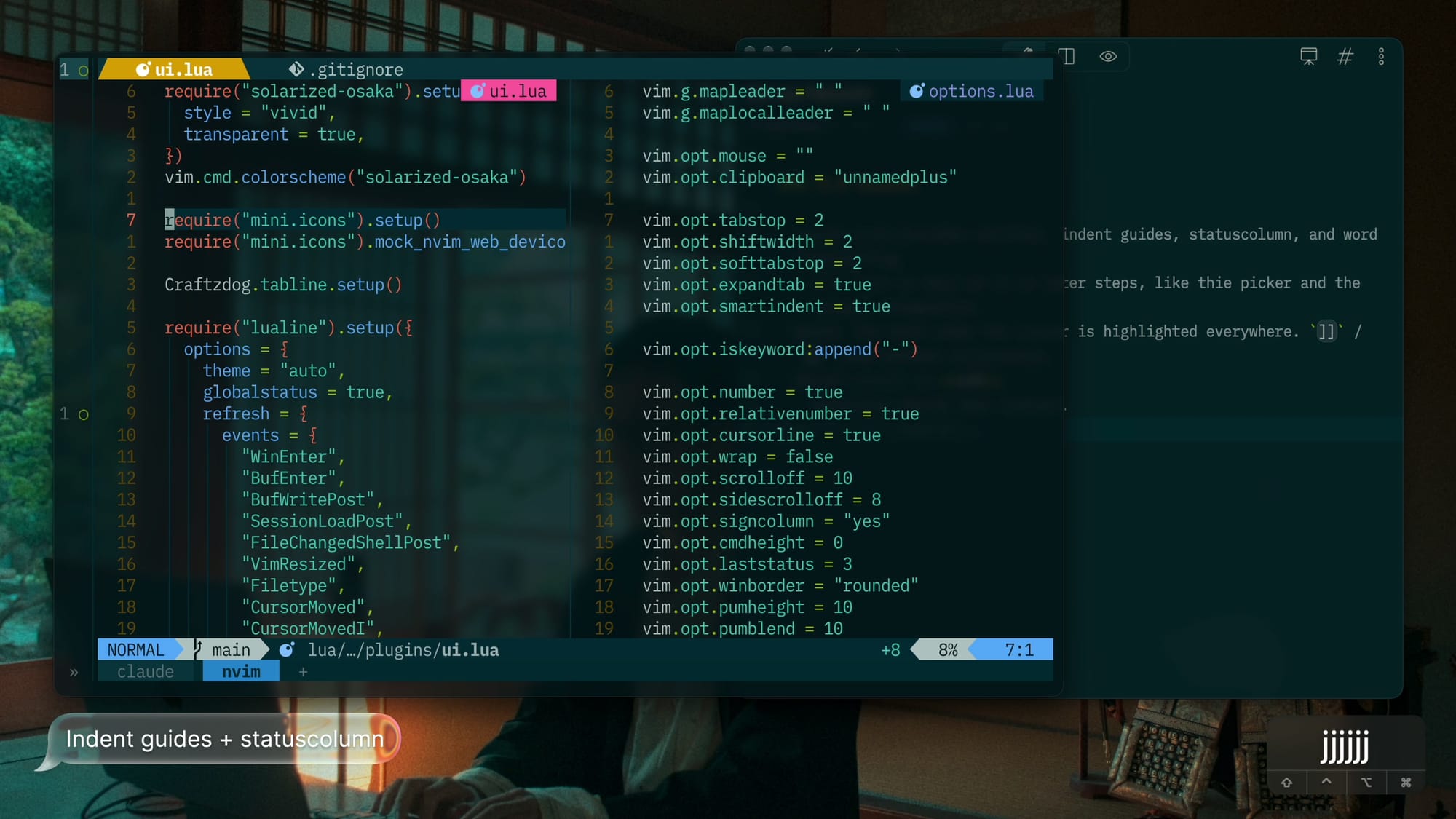
snacks.nvim provides the notifier, indent guides, statuscolumn, and word highlighting.
Later steps turn on more of it, like the picker and the lazygit integration.
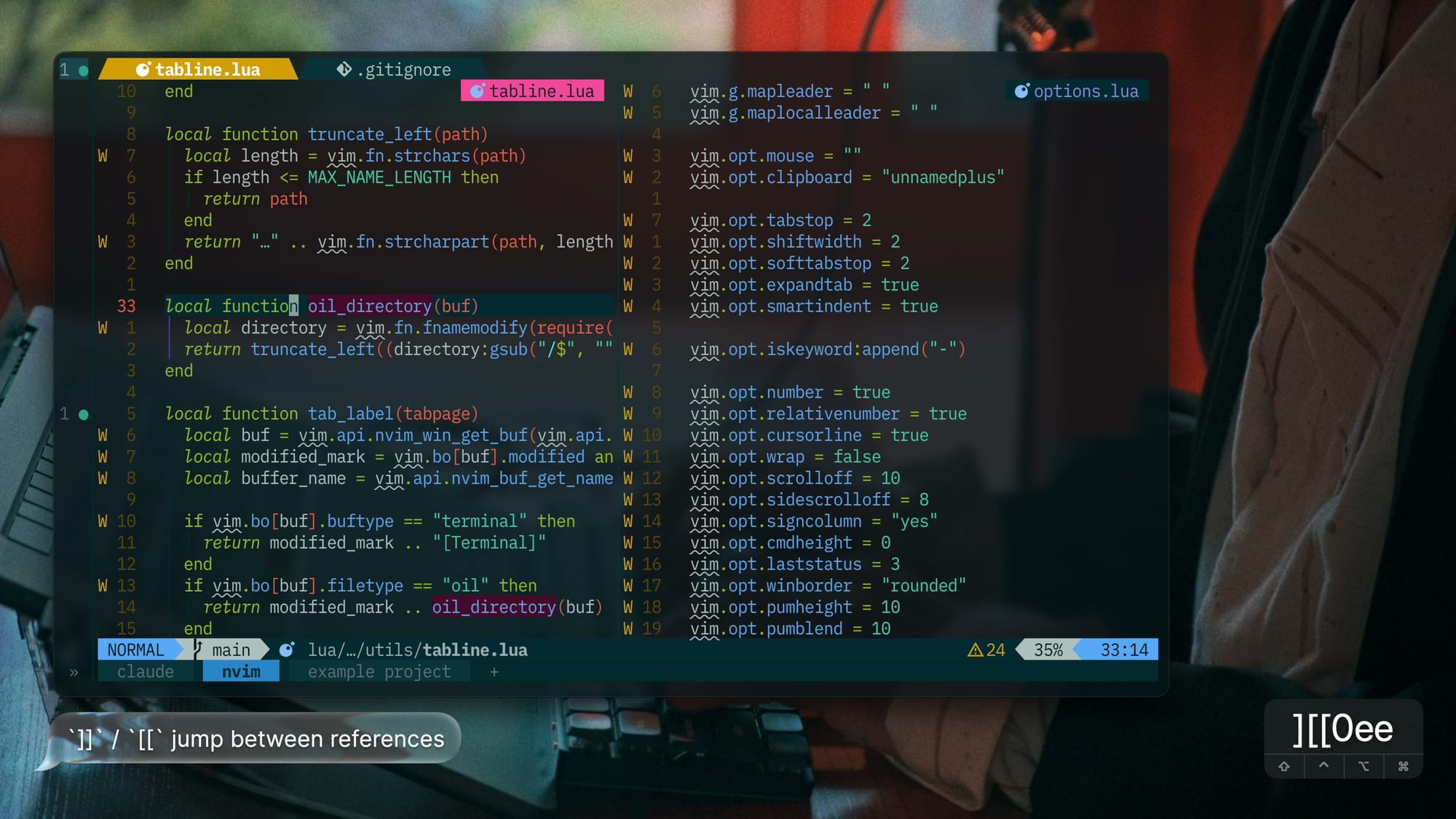
- Words: the word under the cursor is highlighted everywhere.
]]/[[jump between occurrences.- It needs a language server, so it works after step 5.1.
- Smooth scroll is off.
- Scrolling should feel instant.
3. Navigating
3.1 Picker
The snacks.nvim picker.
| Keys | Action | Notes |
|---|---|---|
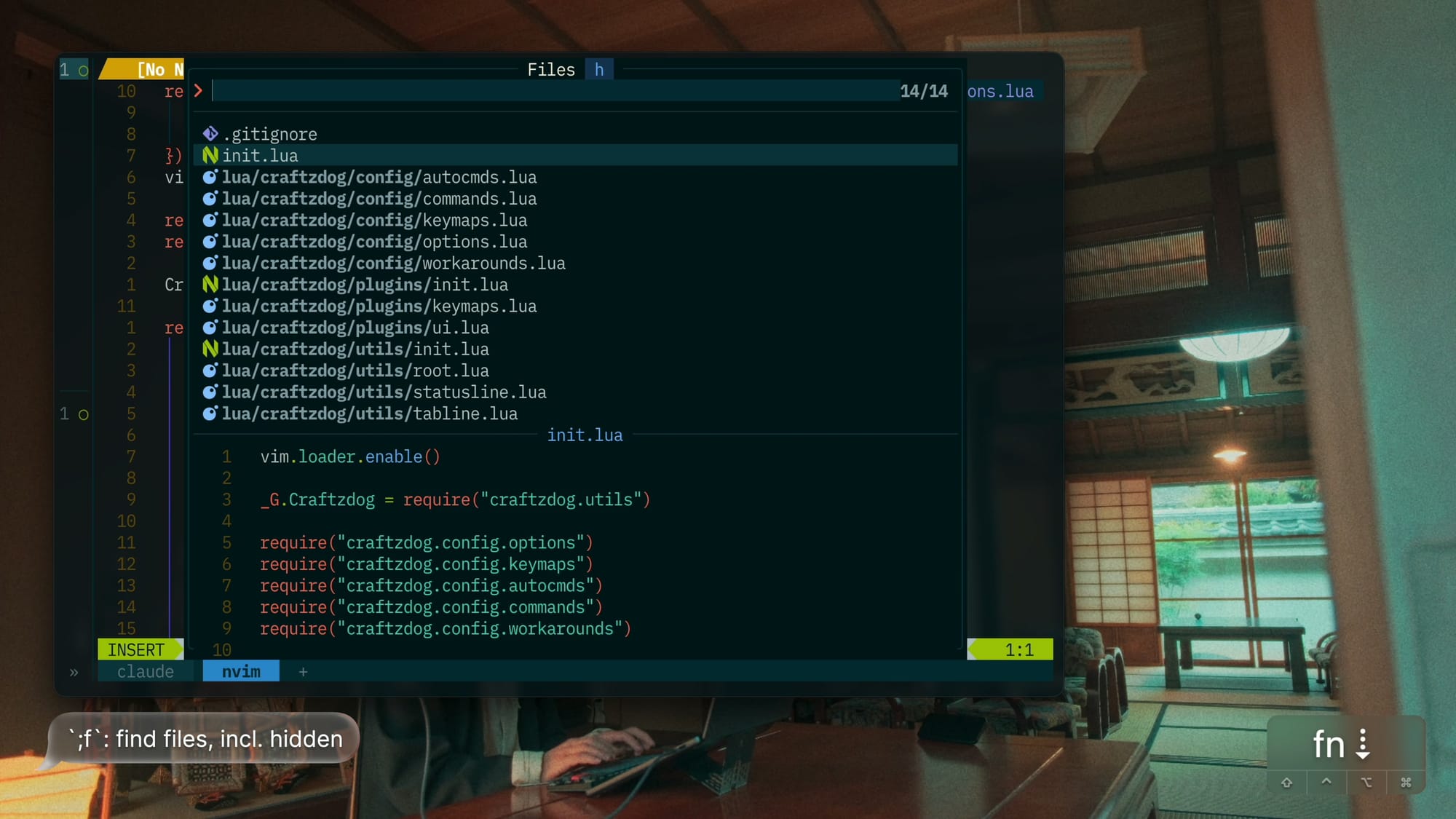
;f |
Finds files, including hidden ones | Dotfiles like .github/ and .env.example are part of real projects. |
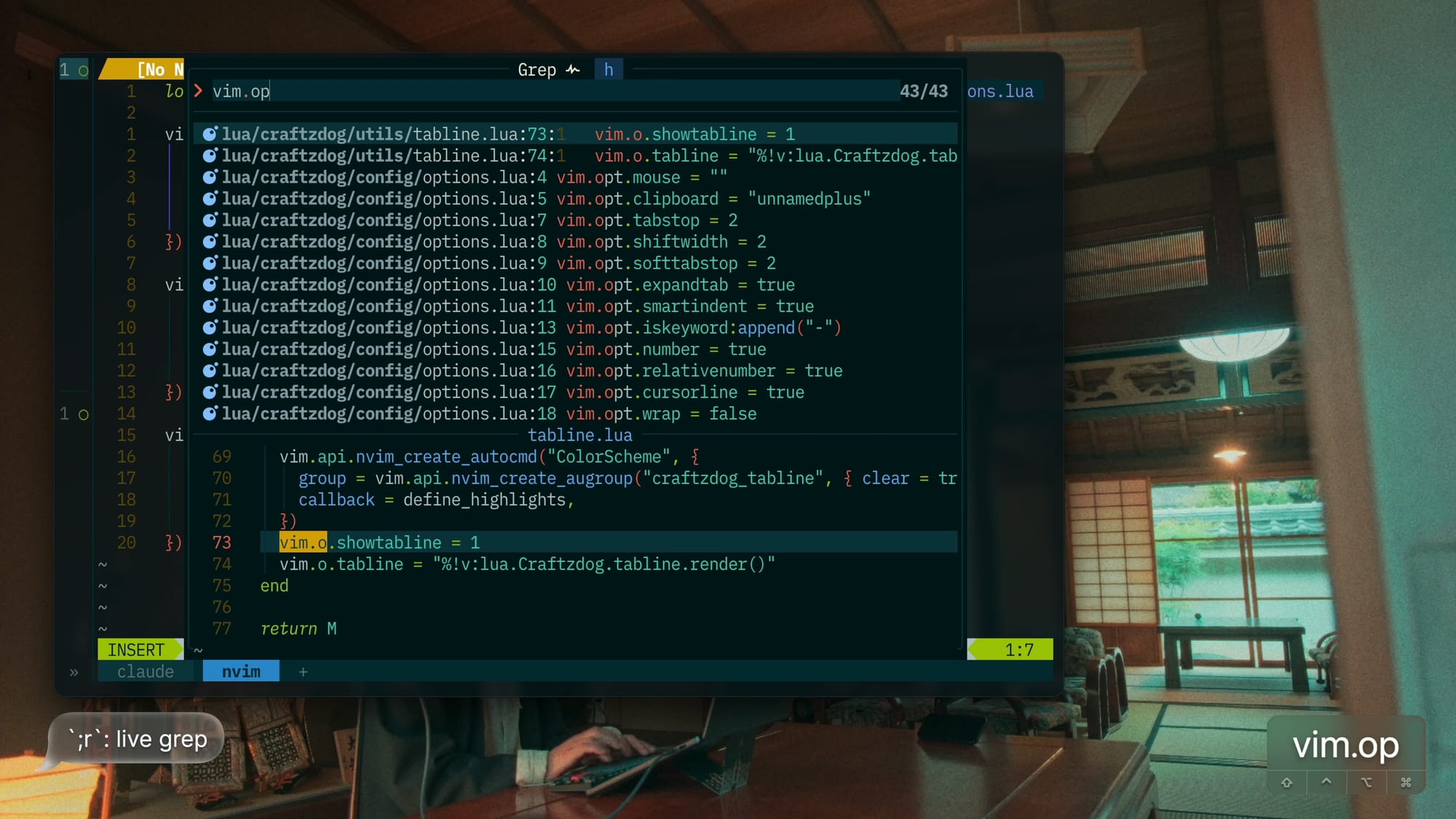
;r |
Live-greps, including hidden files | |
;; |
Reopens the last picker | |
\\ |
Lists open buffers | Jumps to a window that already shows the buffer. |
;e |
Lists diagnostics | |
;n |
Shows notification history | |
;h |
Lists git hunks |
3.2 File explorer
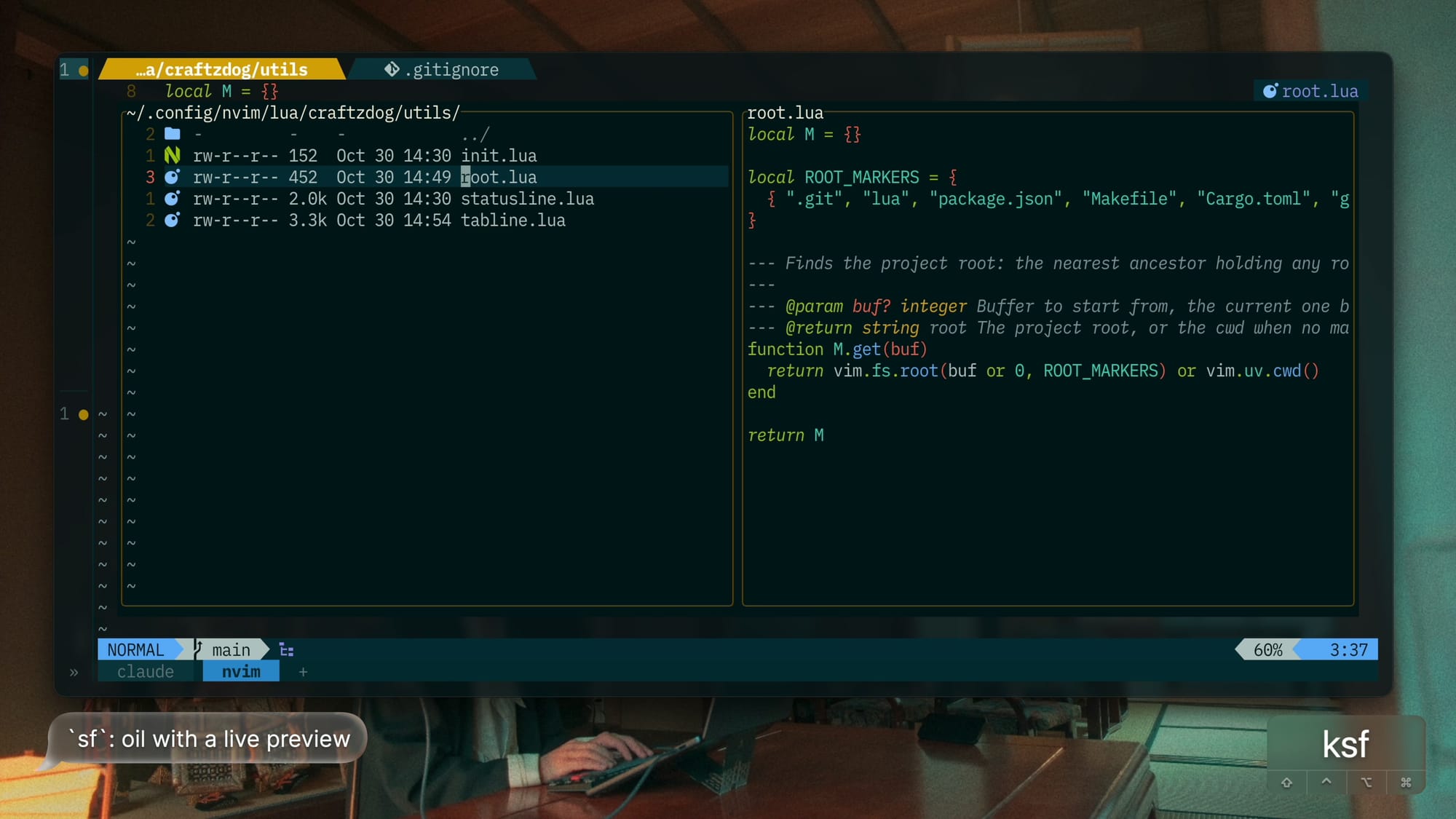
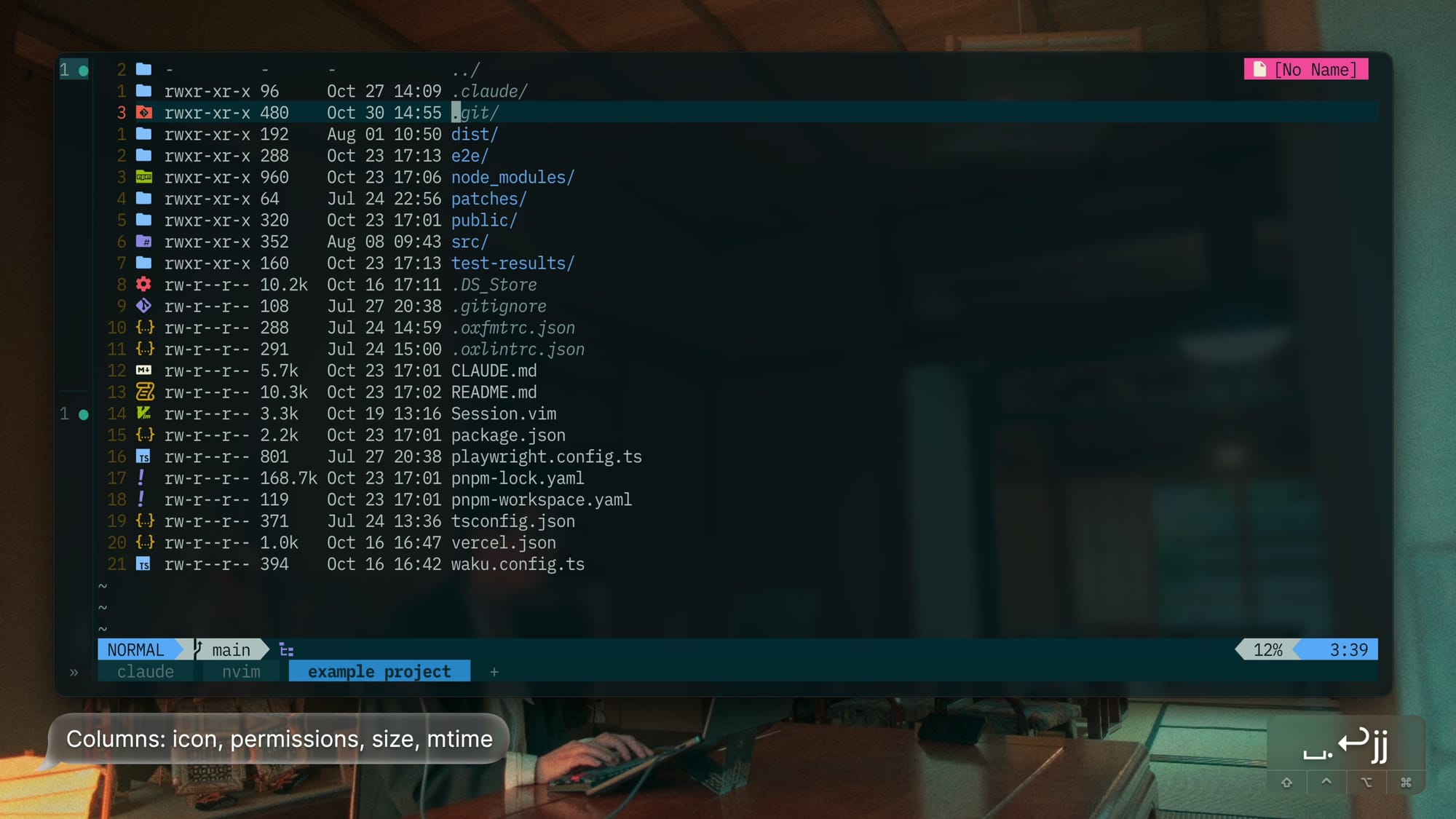
oil.nvim replaces netrw and shows hidden files.
- The directory is a buffer, so renaming, moving, and deleting files is plain text editing followed by
:w. - Columns: icon, permissions, size, modified time.
- Renaming a file asks the LSP to update imports and saves those edits automatically.
- In the tabline (2.3), an oil tab shows its directory (
~/foo) with no icon.- Paths longer than 20 characters are cut from the left to
…plus the last 17.
- Paths longer than 20 characters are cut from the left to
| Keys | Action | Notes |
|---|---|---|
sf |
Opens oil as a centered float with a live preview | At most 200 columns wide, with rounded corners. |
h |
Goes to the parent directory | |
q |
Closes oil |
4. Syntax
4.1 Treesitter
nvim-treesitter, main branch.
- Ensures 38 parsers:
- astro, bash, c, cmake, cpp, css, diff, fish, gitignore, go, graphql, html, http, java, javascript, jsdoc, json, lua, luadoc, luap, markdown, markdown_inline, php, printf, python, query, regex, rust, scss, sql, svelte, toml, tsx, typescript, vim, vimdoc, xml, yaml
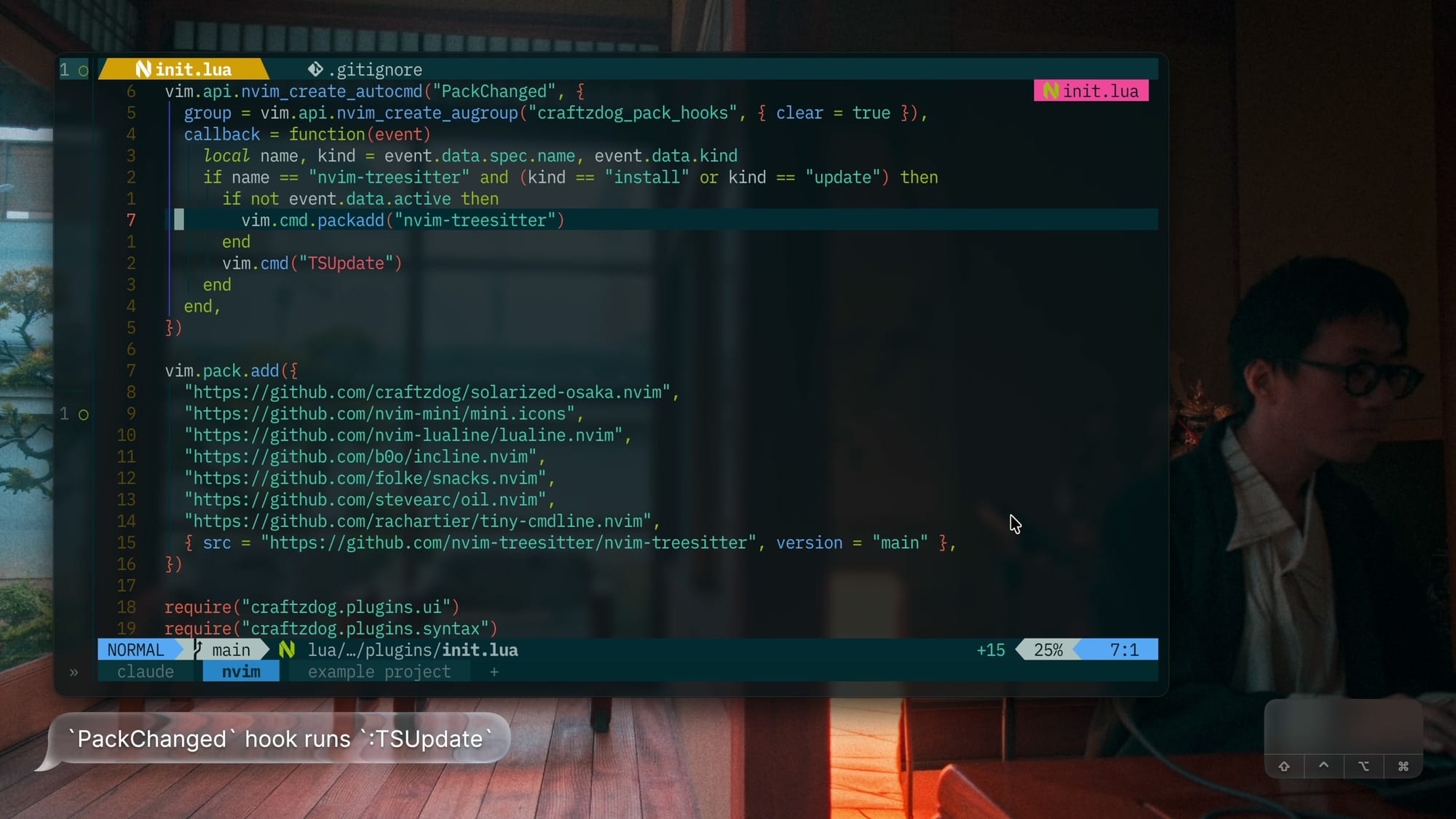
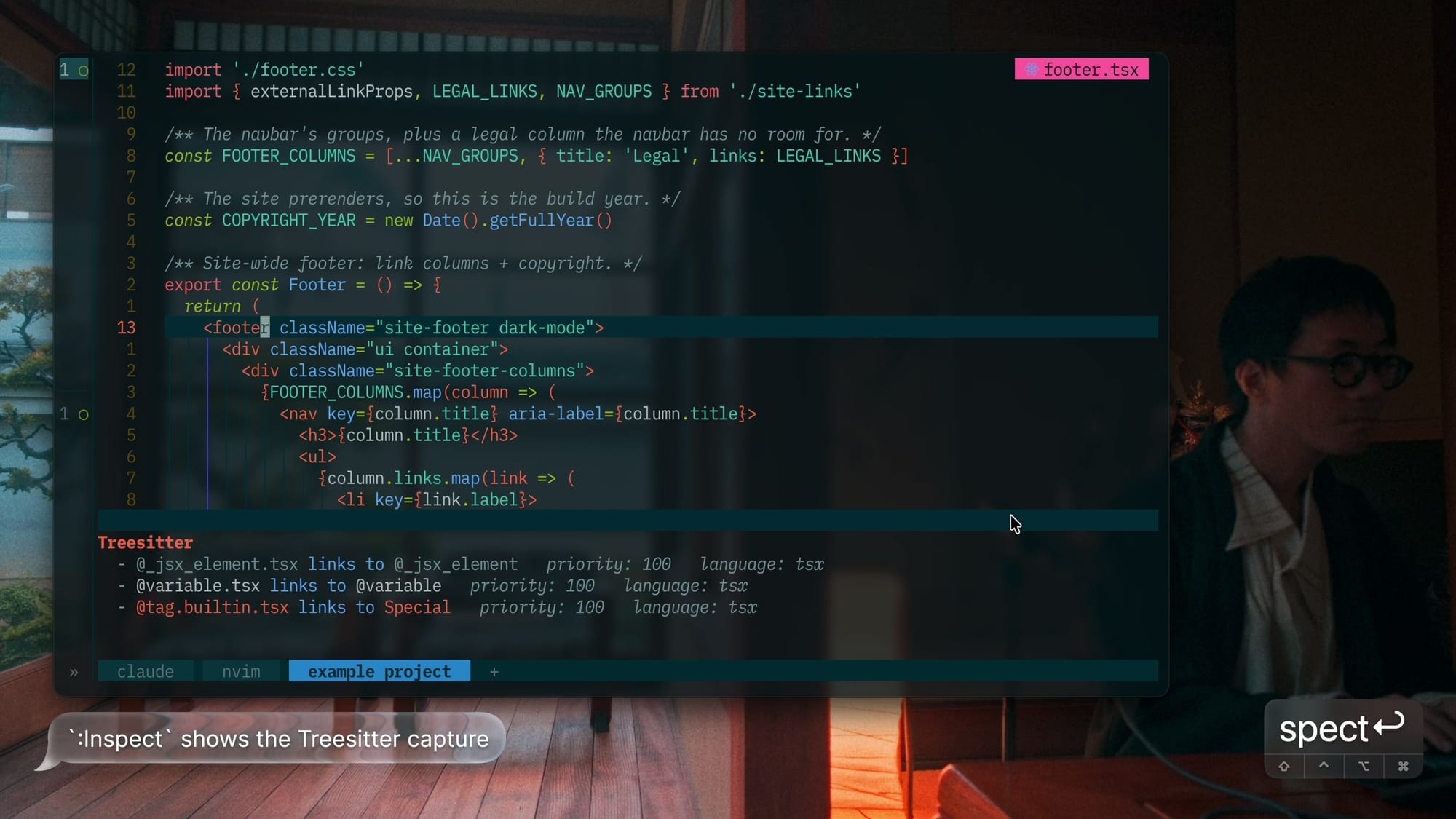
- A FileType autocmd starts highlighting and Treesitter indent whenever a parser exists.
:TSUpdateruns on thePackChangedevent.- Parsers stay in sync with the plugin version.
4.2 Small highlights
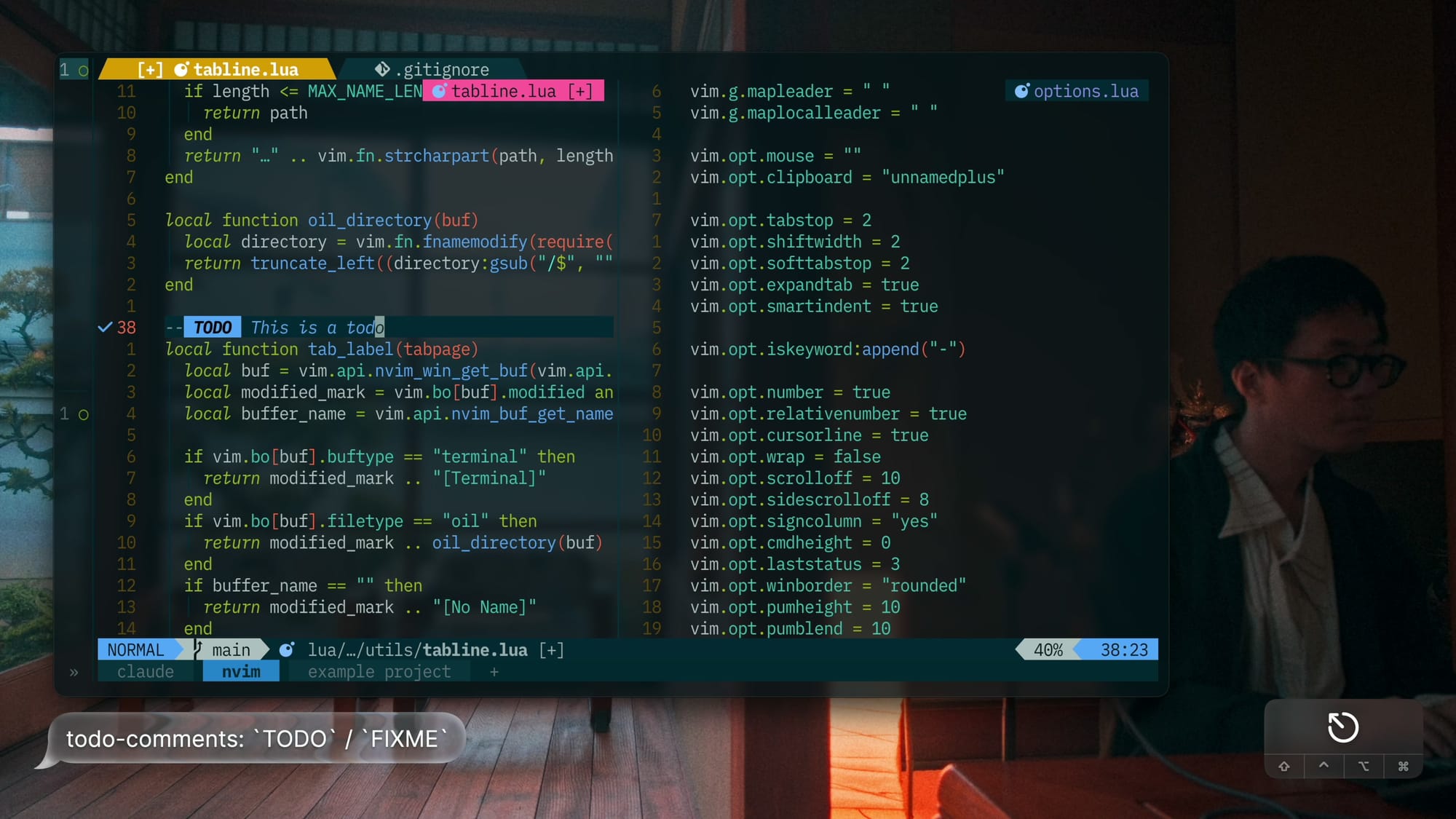
- todo-comments.nvim highlights
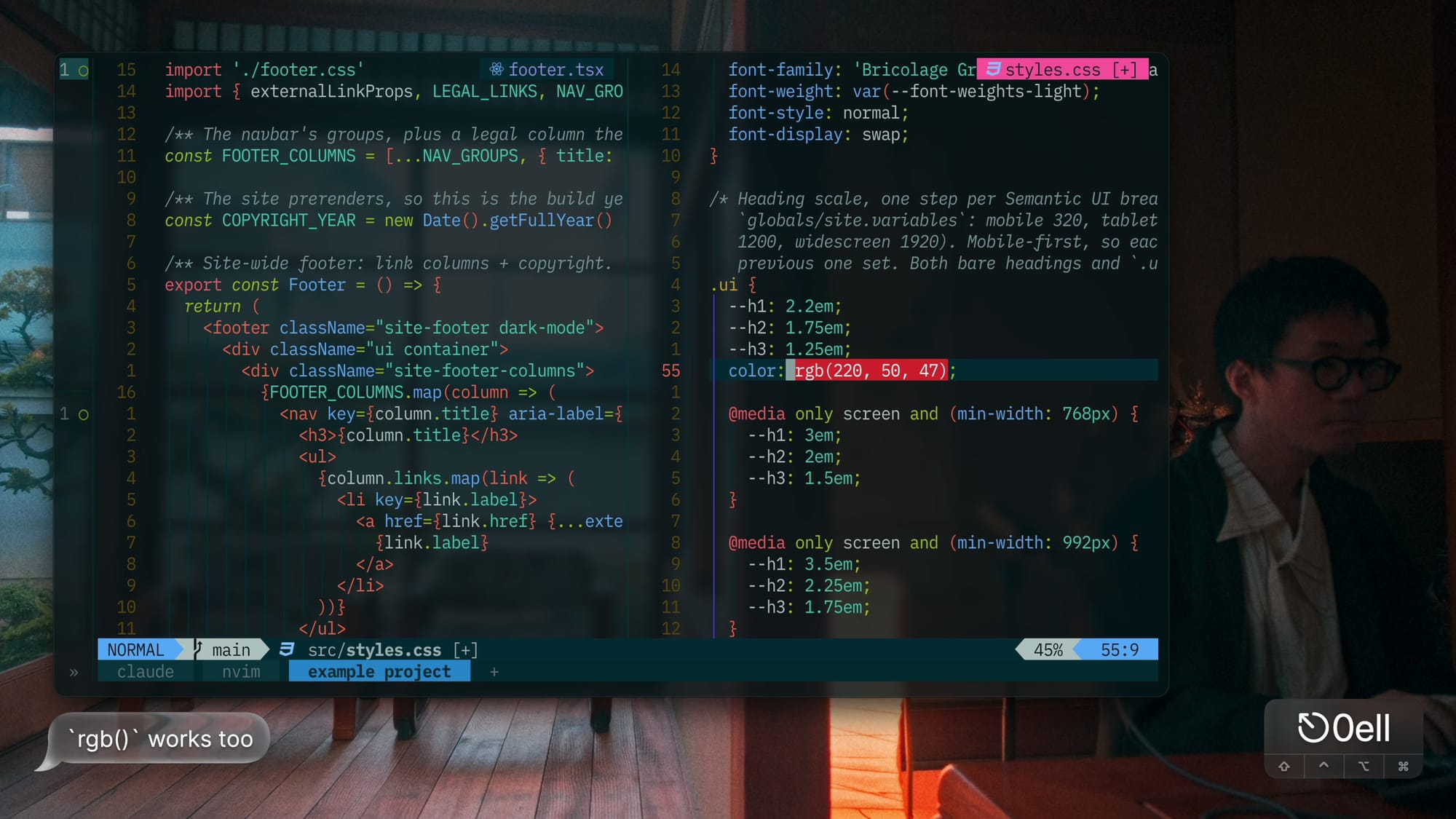
TODO,FIXME, and the like, with defaults. - nvim-highlight-colors paints hex, rgb, hsl, ANSI, and CSS variable colors as backgrounds. Tailwind is off.
- Neovim's LSP document colors are turned off, so colors aren't painted twice.
5. Code smarts
5.1 Language servers
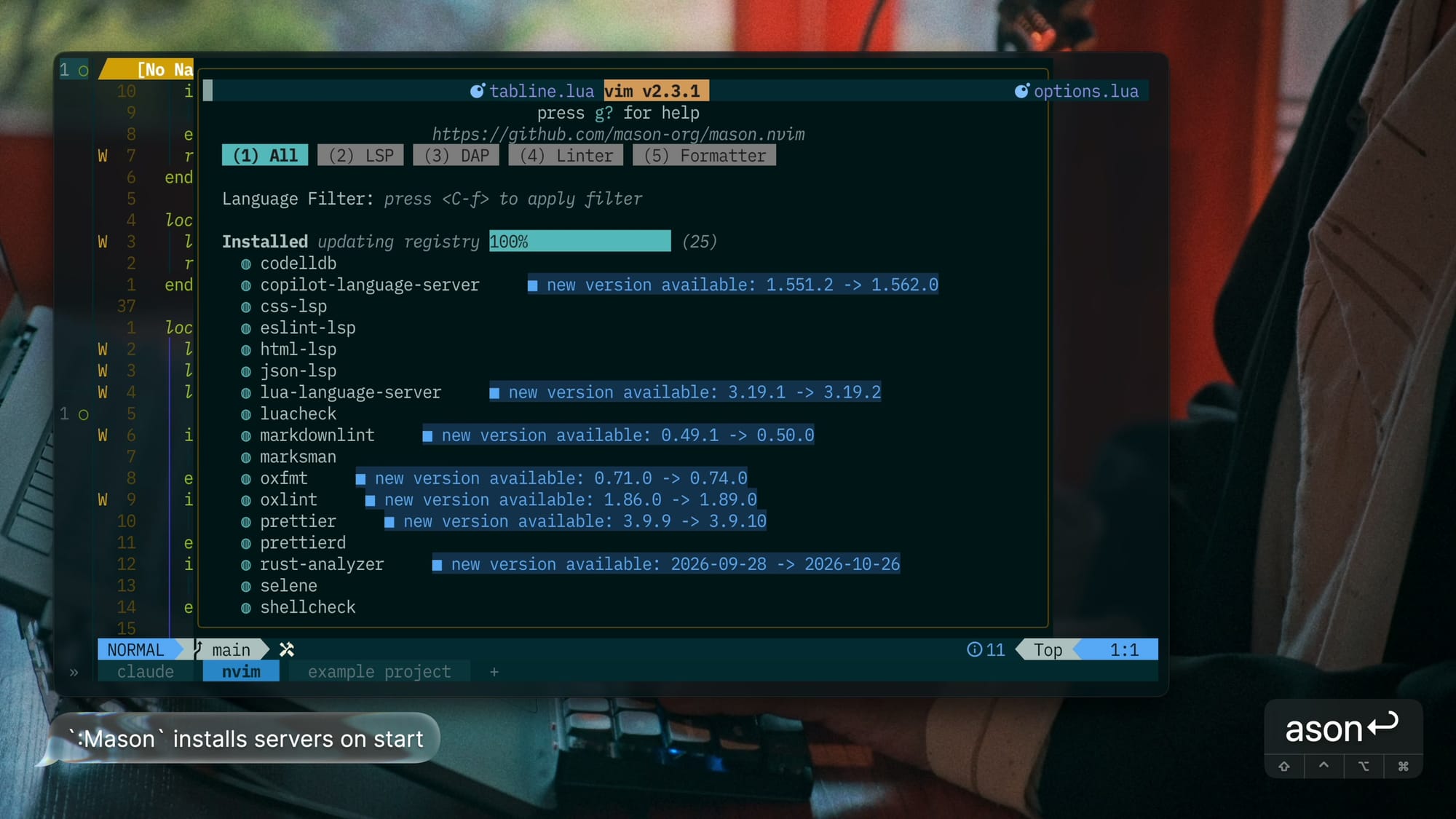
Mason + mason-tool-installer install on start, and never auto-update:
- Servers: lua-language-server, vtsls, eslint-lsp, oxlint, tailwindcss-language-server, css-lsp, rust-analyzer, copilot-language-server
- Formatters: prettier, prettierd, oxfmt, stylua, shfmt
nvim-lspconfig supplies defaults.
- Servers are turned on with
vim.lsp.enable: eslint, oxlint, lua_ls, cssls, vtsls, tailwindcss, rust_analyzer. - Every server gets file-rename support (
didRename/willRename).
5.2 Diagnostics look
- Underlined, not updated while typing, sorted by severity.
- Inline text:
● message, with the source only when there are several. - Gutter icons come from the shared icon set.
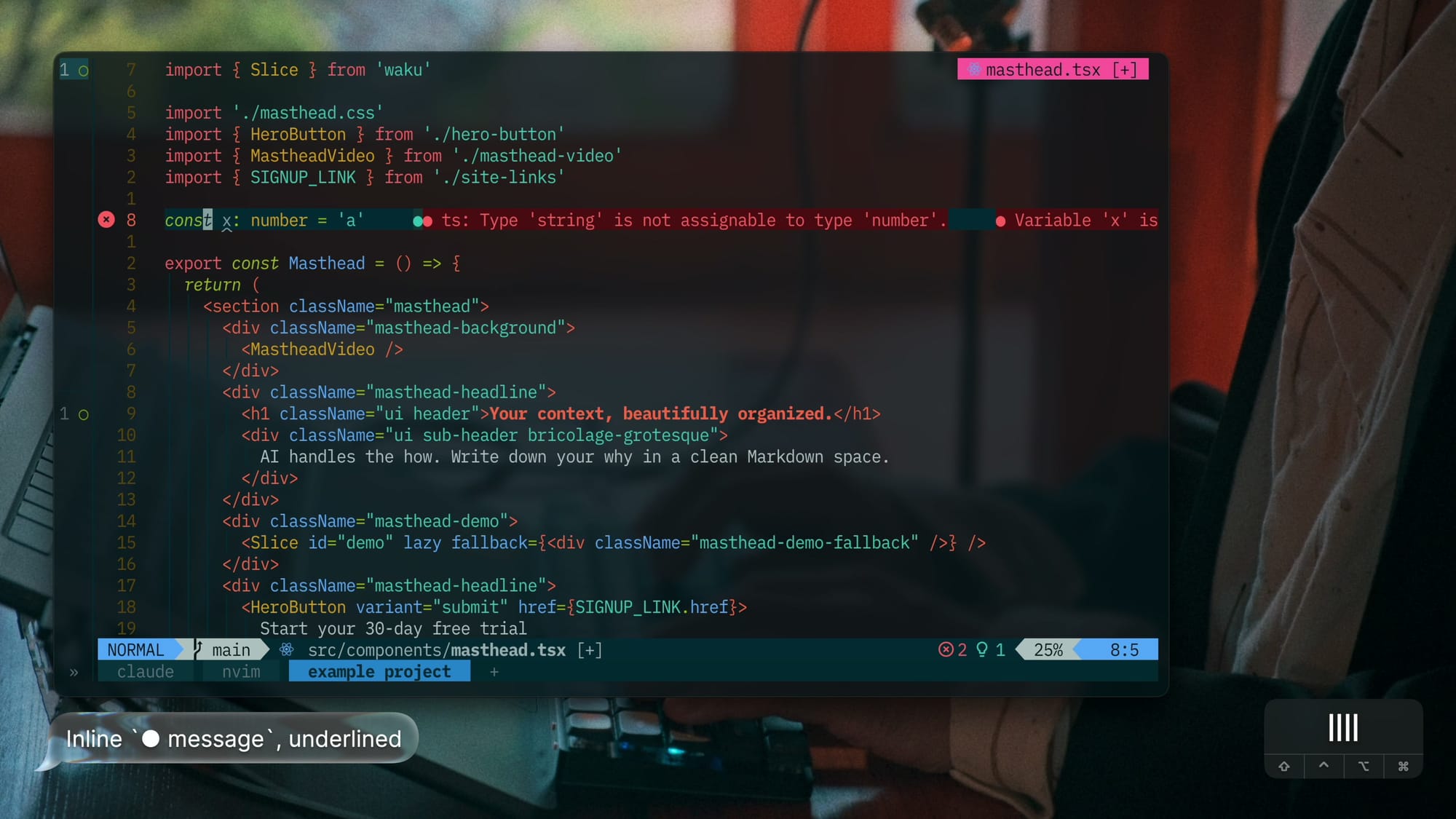
For example, typing const x: number = 'a' in a TSX file:
- The error is underlined, with
● Type 'string' is not assignable…inline and an icon in the gutter. - The line also has a "never read" hint, but the gutter shows the error icon, since they are sorted by severity.
- oxlint flags the unused
xtoo, so each message shows its source (ts,oxc).
5.3 Per-server settings
Per-server settings live in after/lsp/<name>.lua.
Neovim 0.12 merges these automatically, so there's no setup boilerplate.
- vtsls:
- Uses the workspace TypeScript and updates imports on file move.
- Server-side fuzzy matching and function-call completion.
- Inlay hints are short: no variable types, 30 characters max.
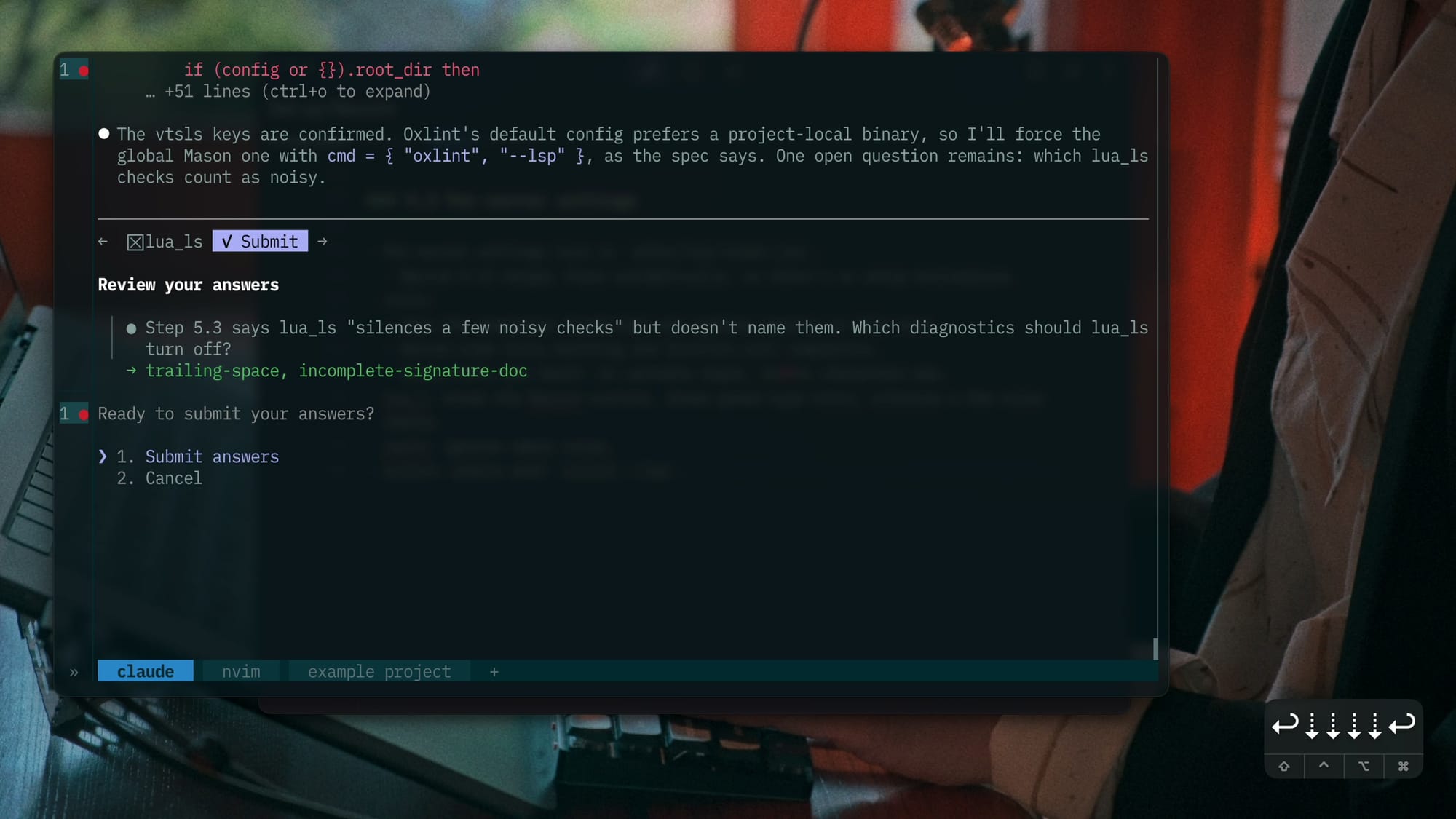
- lua_ls: knows the Neovim runtime, shows param-type hints, silences a few noisy checks.
- cssls: ignores empty rules.
- oxlint: starts with
oxlint --lsp.
5.4 Completion
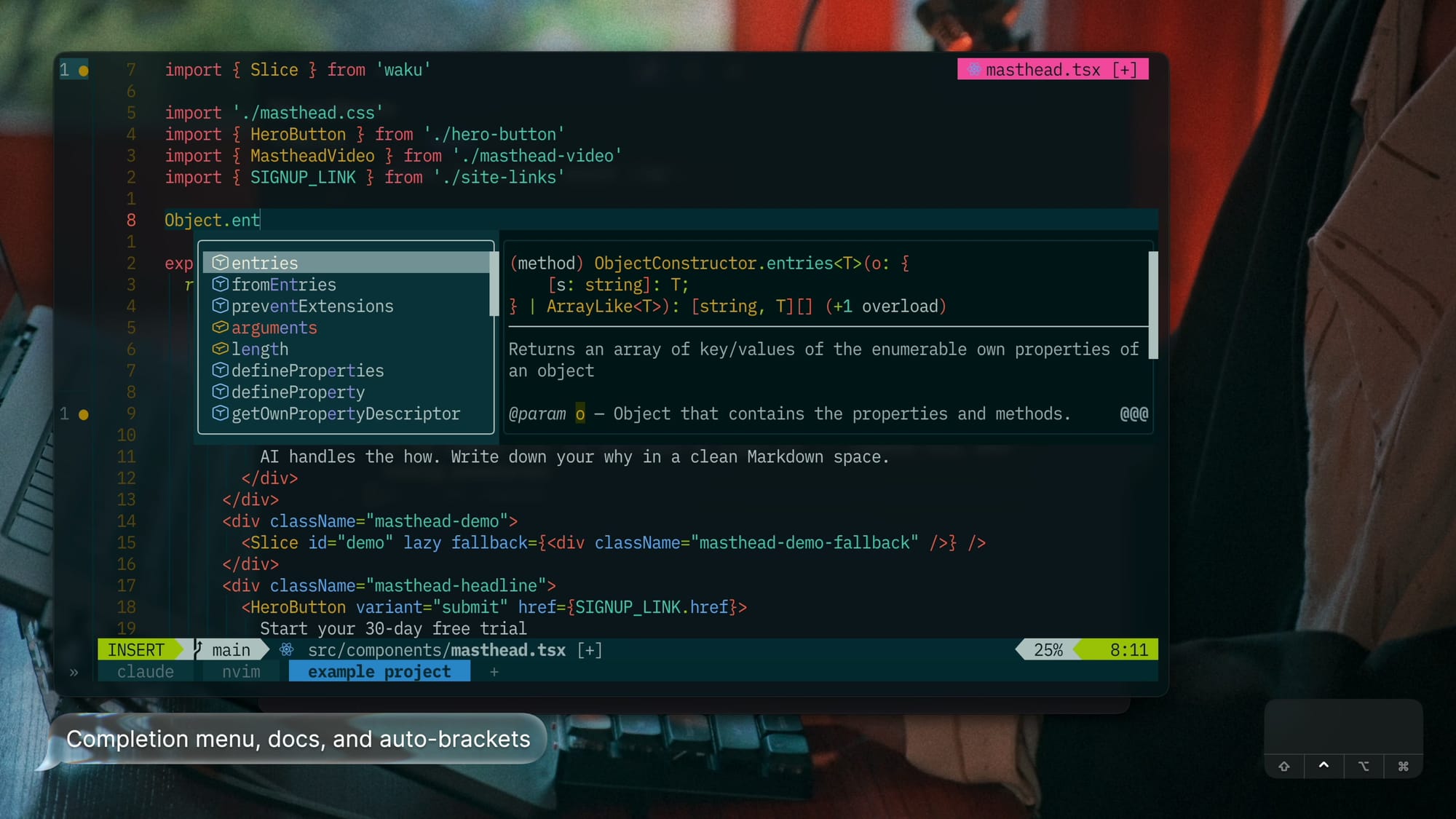
blink.cmp, version ^1, enter preset: Enter accepts.
- Every language server from 5.1 also gets blink.cmp's completion capabilities.
- Auto-brackets after functions. Docs pop up after 200 ms.
- Menu items are colorized by Treesitter, with kind icons from the shared icon set.
- Ghost text is off.
- Copilot already shows inline suggestions, and two ghost texts would clash.
- In the command line, the menu opens by itself for
:commands only, with nothing preselected.
5.5 Pairs
- mini.pairs with defaults, in insert and command mode.
5.6 Formatting
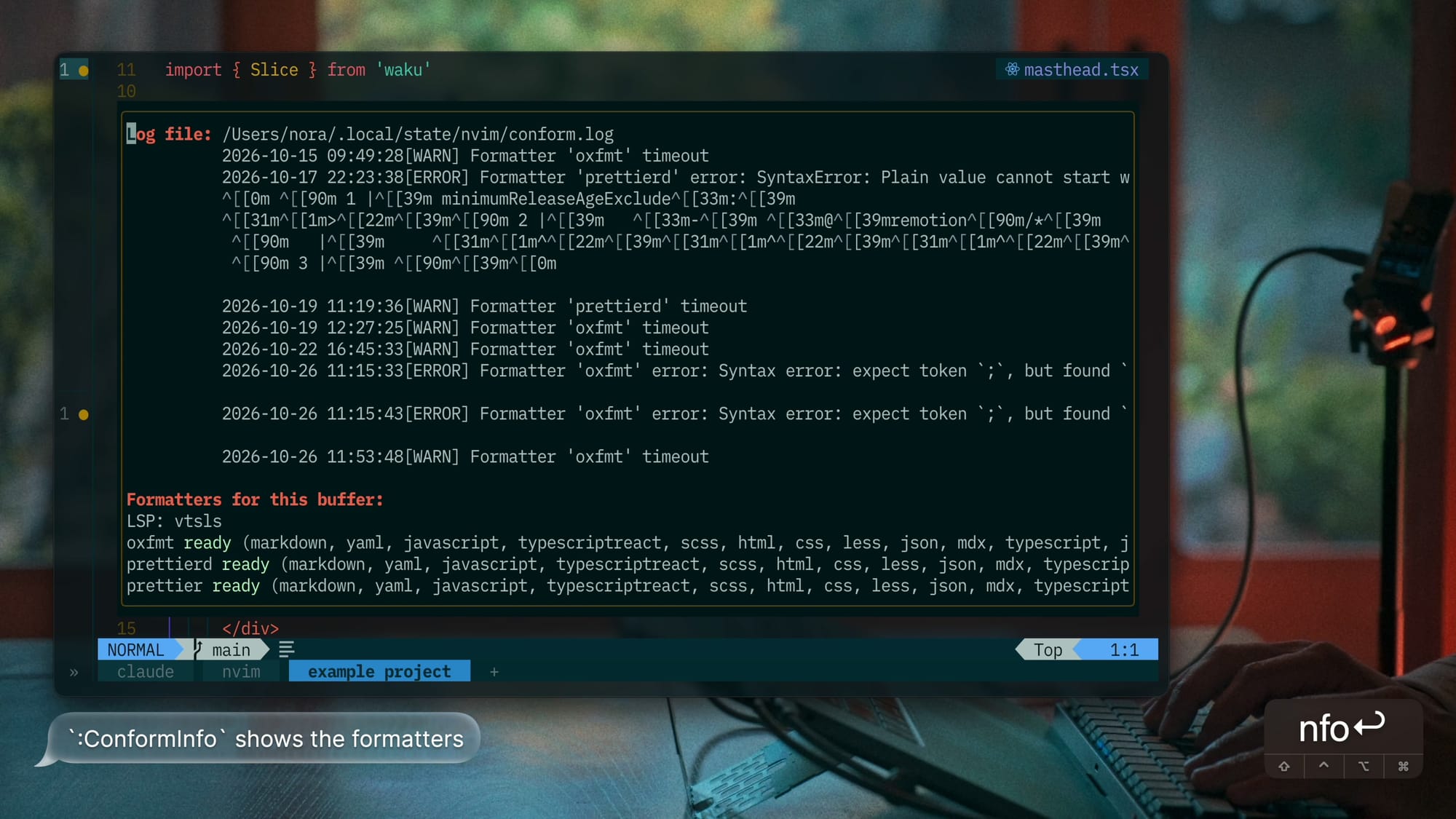
conform.nvim formats on save with a 1000 ms timeout, falling back to the LSP.
| Filetypes | Formatter |
|---|---|
| js, ts, jsx, tsx, json, css, scss, less, html, markdown, mdx, yaml | oxfmt, then prettierd, then prettier (first available) |
| lua | stylua |
| sh | shfmt |
| fish | fish_indent |
- oxfmt runs only when the project has an oxfmt config, like
.oxfmtrc.jsonor a Vite+vite.config.ts.- Projects using prettier keep their own formatter.
:ToggleFormatterturns format-on-save off or back on for the current buffer, with a notification.- The command lives in
config/commands.lua.
- The command lives in
5.7 LSP keymaps
| Keys | Action | Notes |
|---|---|---|
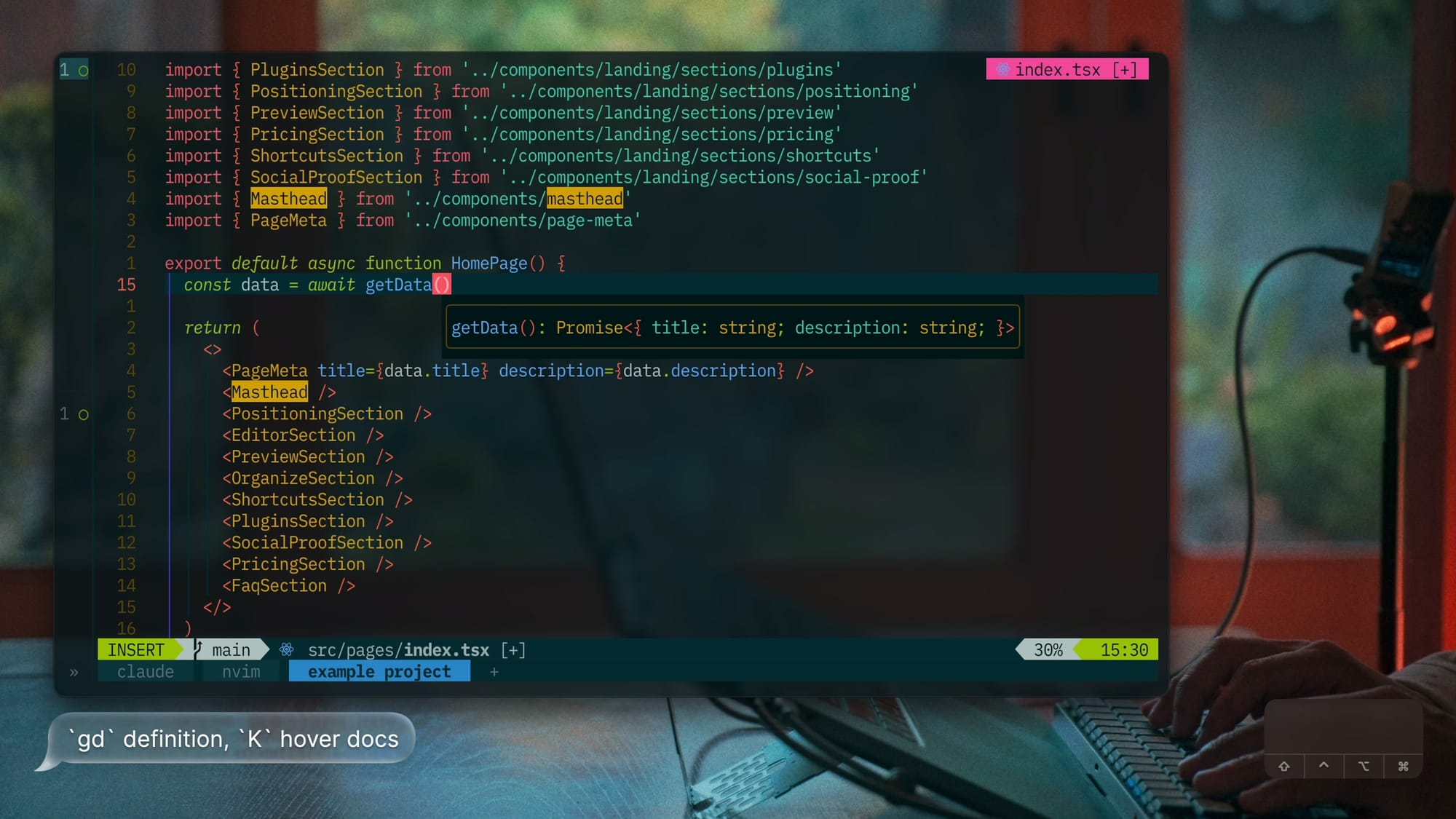
gd |
Goes to the definition | Through the picker, like gD, gy, and gr. |
gD |
Goes to the declaration | |
gy |
Goes to the type definition | |
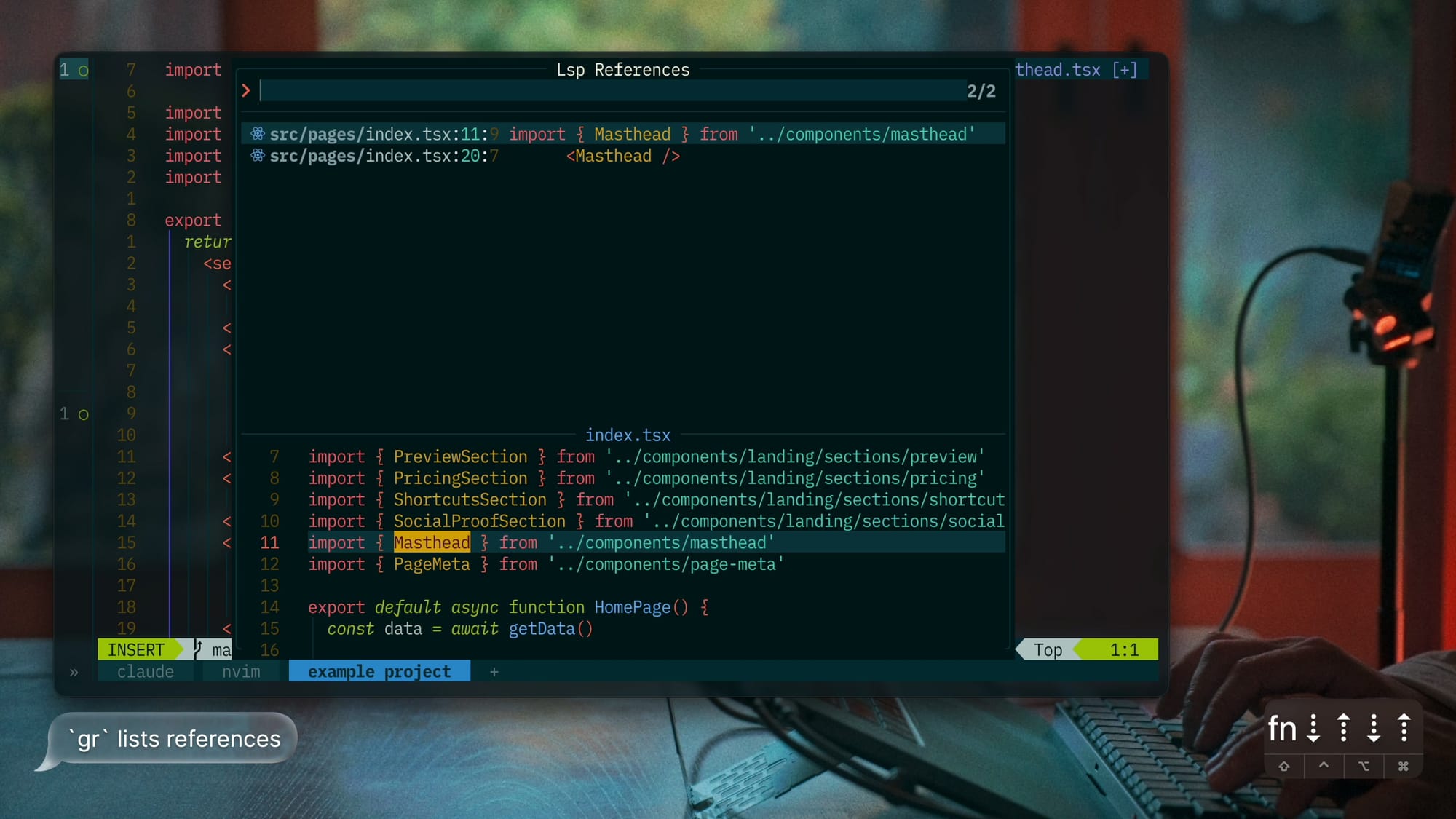
gr |
Lists references | |
gI |
Goes to the source definition in TypeScript, the implementation in other languages | Skips the .d.ts to reach the real code. |
;c |
Lists incoming calls | |
K |
Shows hover docs | |
gK / <C-k> (insert) |
Show signature help | |
<C-j> |
Jumps to the next diagnostic with a float | |
<leader>ca |
Shows code actions | |
<leader>cr |
Renames the symbol | |
<leader>cR |
Renames the file with import updates | |
<leader>f |
Formats now | |
<leader>cl |
Shows LSP info |
6. Git
Since I mostly review code written by my agent now, this is the part of the setup I use the most.
6.1 Signs and blame
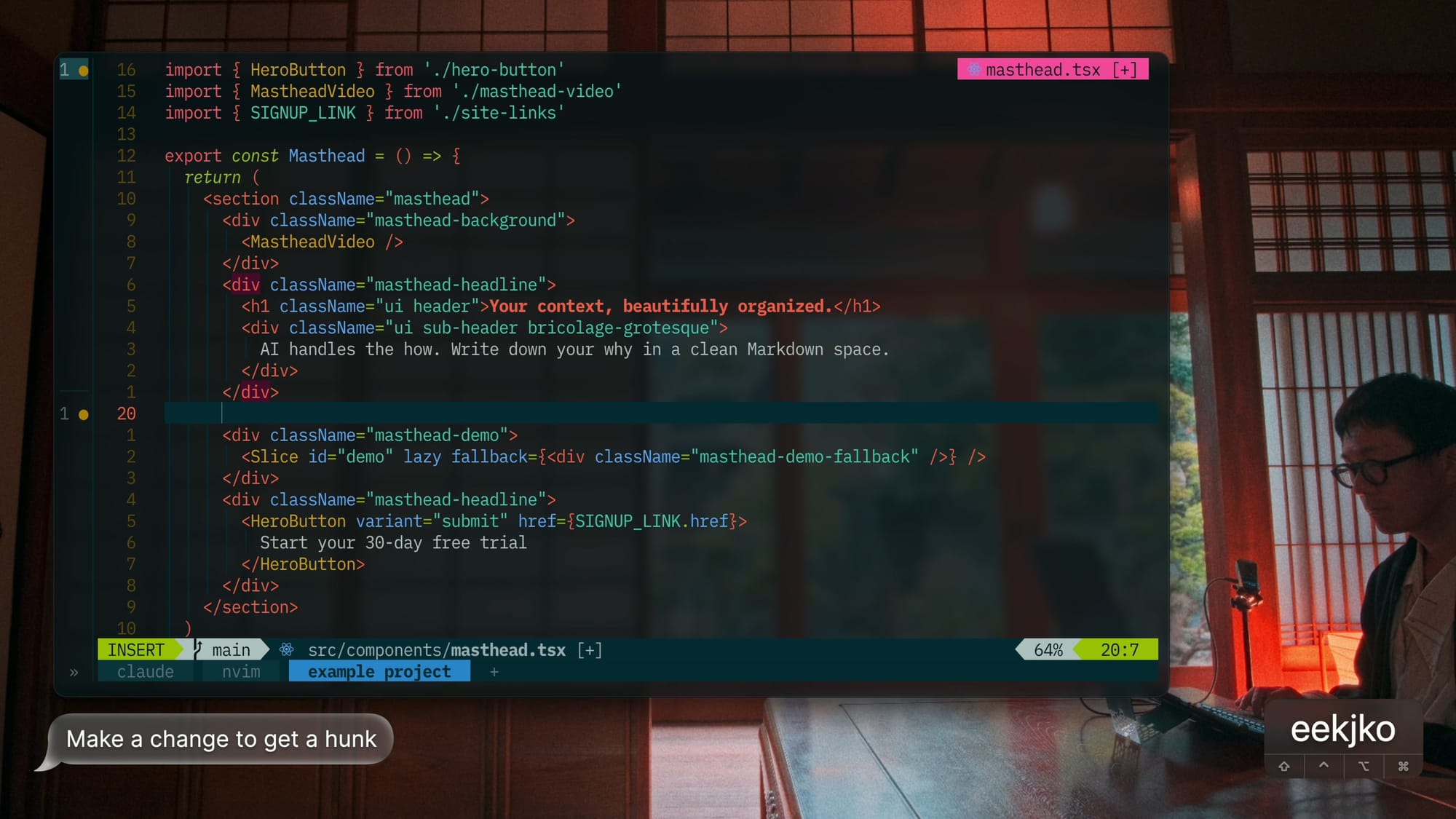
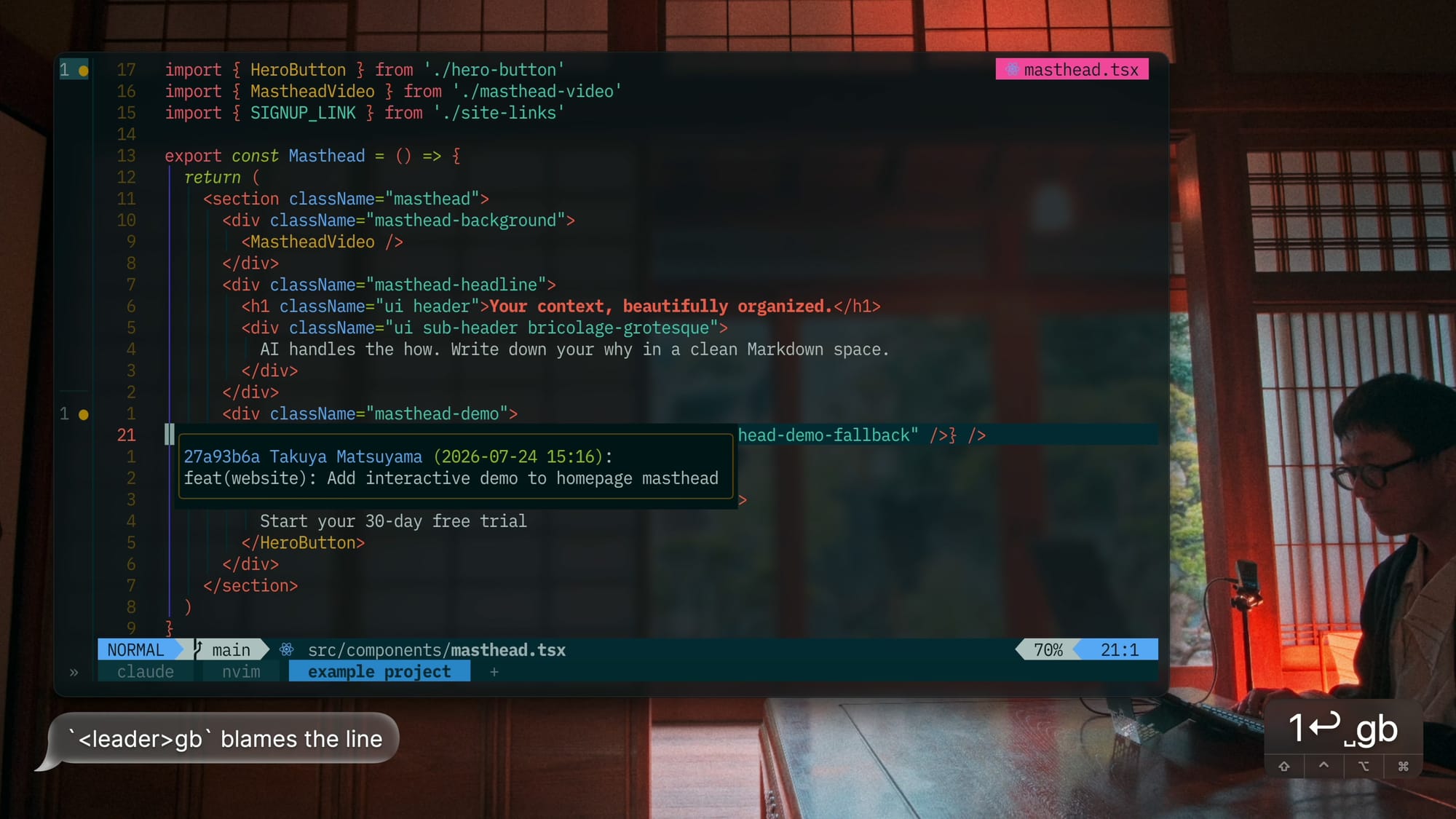
gitsigns.nvim with defaults.
| Keys | Action | Notes |
|---|---|---|
<leader>gb |
Blames the line | |
<leader>gB |
Blames the buffer | |
<leader>go |
Opens the file as of the commit that last touched the line, in a new tab | Shows the context of an old change without leaving the editor. |
<leader>gs |
Stages the buffer, or unstages it if nothing is left to stage | |
<leader>gh |
Stages or unstages the hunk |
6.2 Diff overlay
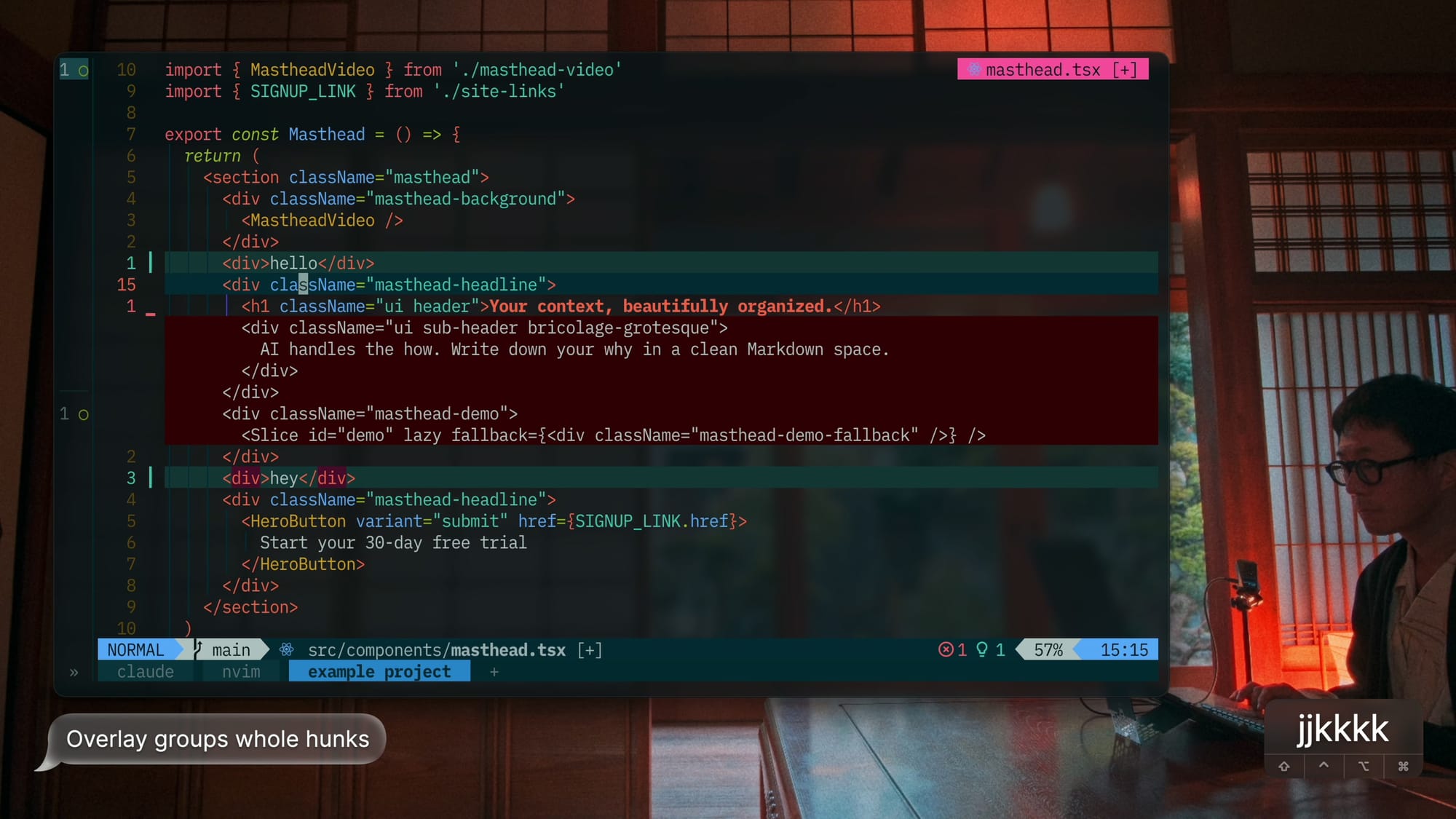
mini.diff from my fork (craftzdog/mini.diff, branch feat/grouping).
- The fork groups changes into whole hunks, the way
git diffshows them.
| Keys | Action |
|---|---|
<leader>gd |
Toggles the overlay |
]c / [c |
Jump between hunks |
6.3 Diff view
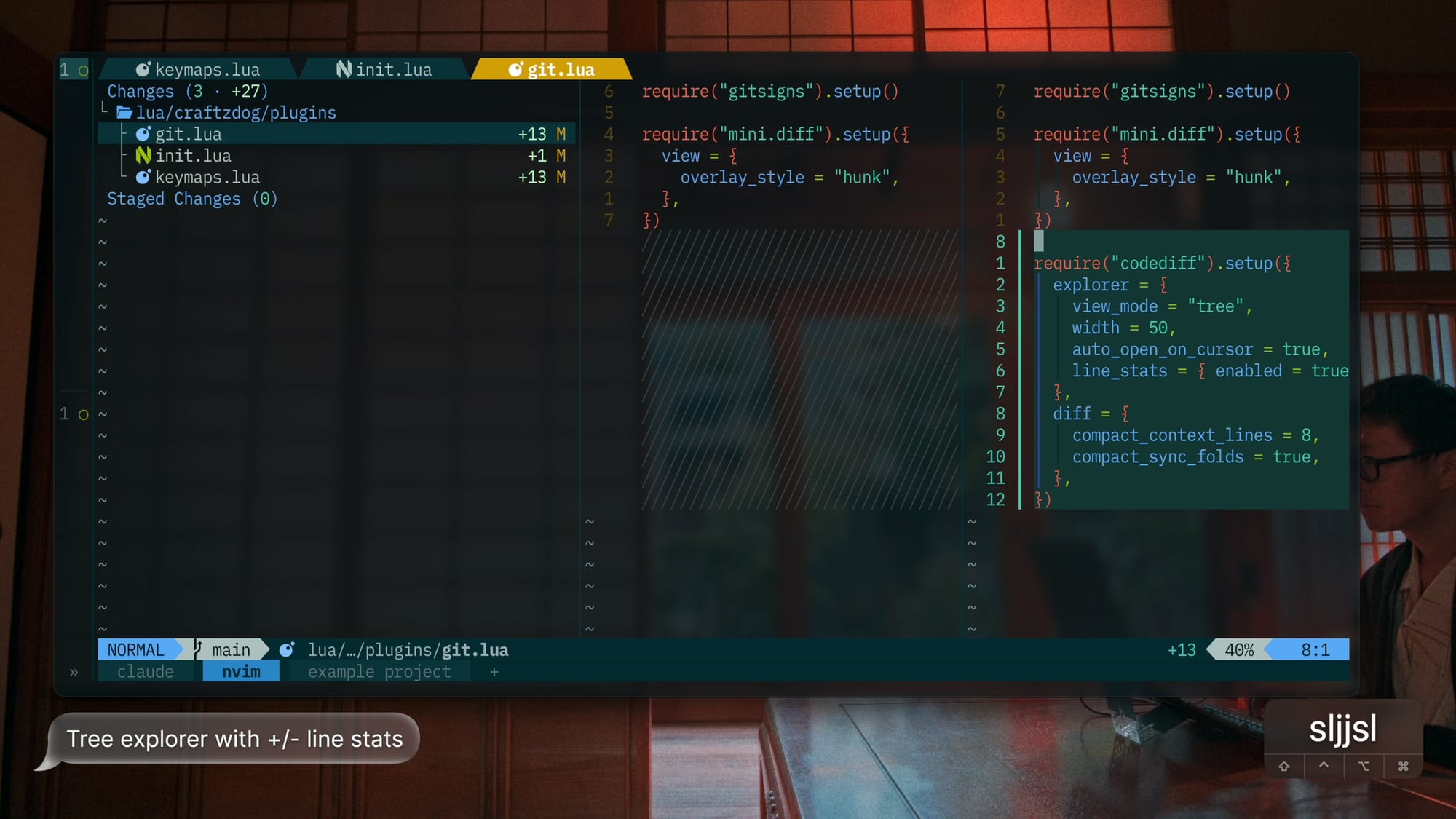
codediff.nvim for side-by-side diffs and history.
I use it when my agent makes a lot of changes in the codebase.
- Explorer: tree view, 50 columns wide, opens files as the cursor moves, shows +/- line stats.
- Compact mode: only changes plus 8 context lines, with folds synced across panes.
| Keys | Action |
|---|---|
<leader>dv |
Toggles the diff view |
<leader>dh |
Shows the current file's history |
<leader>dH |
Shows the repo history |
6.4 Lazygit
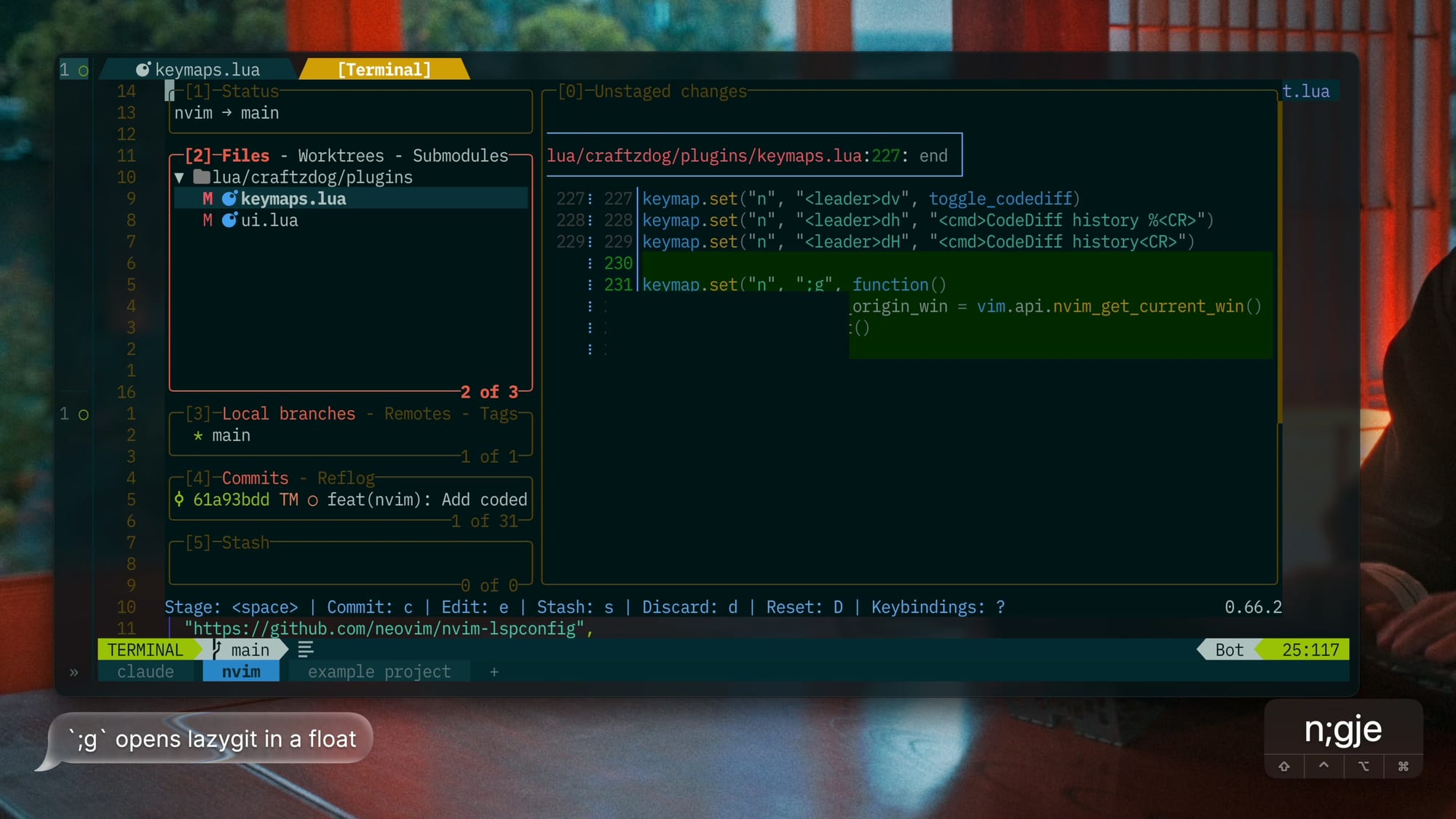
;g opens lazygit in a float through snacks.nvim, with the theme synced and the active border in the WarningMsg color.
Pressing e on a file closes lazygit and opens the file in the window it was launched from, through $NVIM and nvim --server --remote.
;gremembers the current window.equits lazygit, focuses that window with--remote-send, then opens the file, so the cursor ends up in the file.- Not a new tab and not a nested Neovim. Outside Neovim, it just runs
nvim <file>. - The edit command is written in fish syntax.
Lazygit's own config lives in ~/.config/lazygit/config.yml, outside the Neovim config. snacks.nvim loads it together with the synced theme. It holds:
- Diffs render with
delta --dark --paging=never --syntax-theme="Solarized (dark)". - Mouse events are off and auto-fetch is off.
Cin the files panel commits with commitizen (git cz).
6.5 Links
- gitlinker.nvim:
:GitLinkcopies a GitHub URL for the current line, or the selected range.
7. AI
7.1 Copilot
copilot.lua with auto-trigger on, enabled in Markdown and help too.
- Notes and docs benefit from suggestions as much as code does.
- Requires
:Copilot authonce. - On macOS, the terminal needs Option as Alt.
The keys work in insert mode:
| Keys | Action |
|---|---|
<C-l> |
Accepts the suggestion |
Alt-l |
Accepts a word |
Alt-Shift-l |
Accepts a line |
Alt-] / Alt-[ |
Cycle suggestions |
<C-]> |
Dismisses the suggestion |
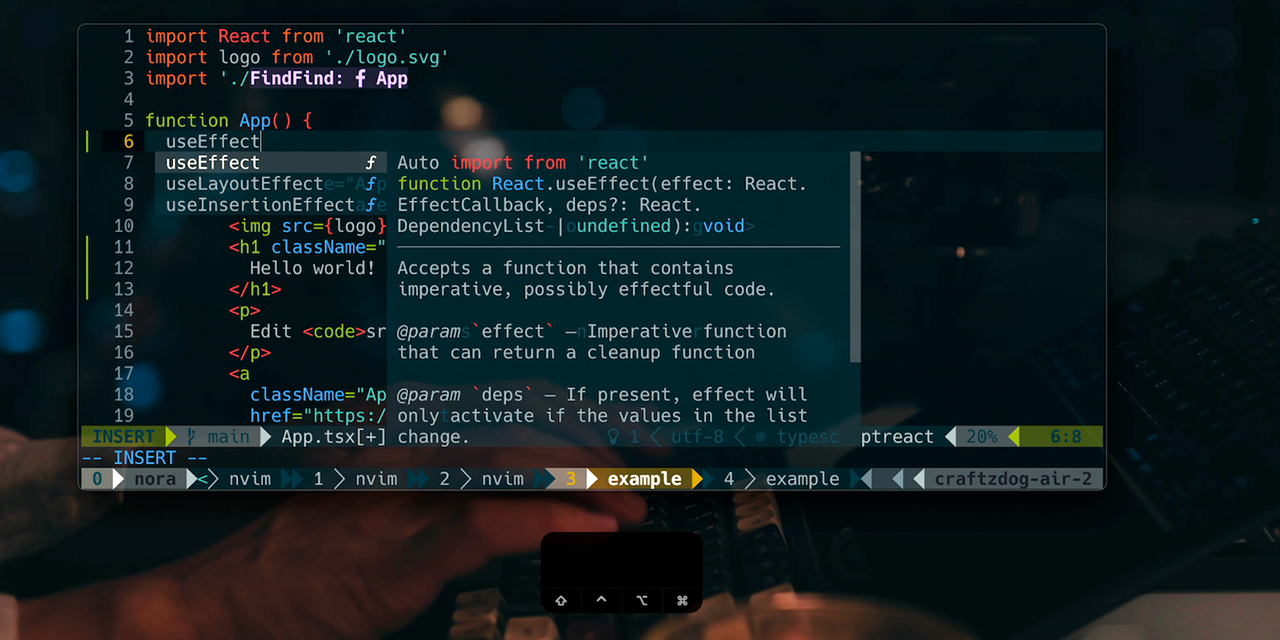
📷 Frame: A Copilot suggestion as ghost text
8. Agentic coding
These are small helpers for passing context from Neovim to an agent.
8.1 Copy paths for agents
| Keys | Action | Notes |
|---|---|---|
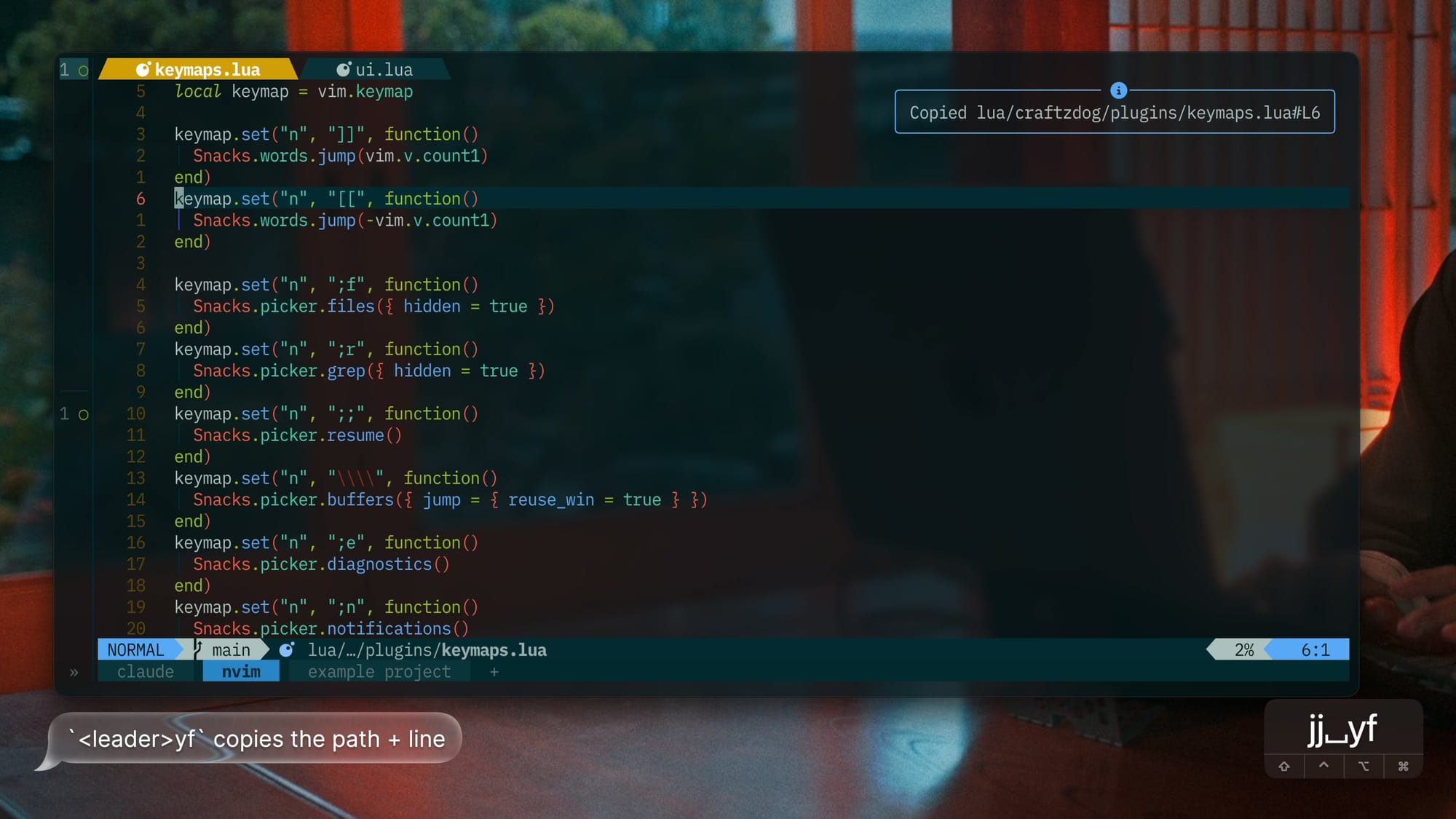
<leader>yf |
Copies the current file's path relative to cwd with #L<line> |
e.g. lua/craftzdog/config/options.lua#L12 |
<leader>yp |
Copies the absolute path the same way |
- Both show the copied text in a notification.
- Pasting the path into an agent's prompt points it at the exact line.
8.2 Helper keymaps
| Keys | Action | Notes |
|---|---|---|
<leader>cc (visual) |
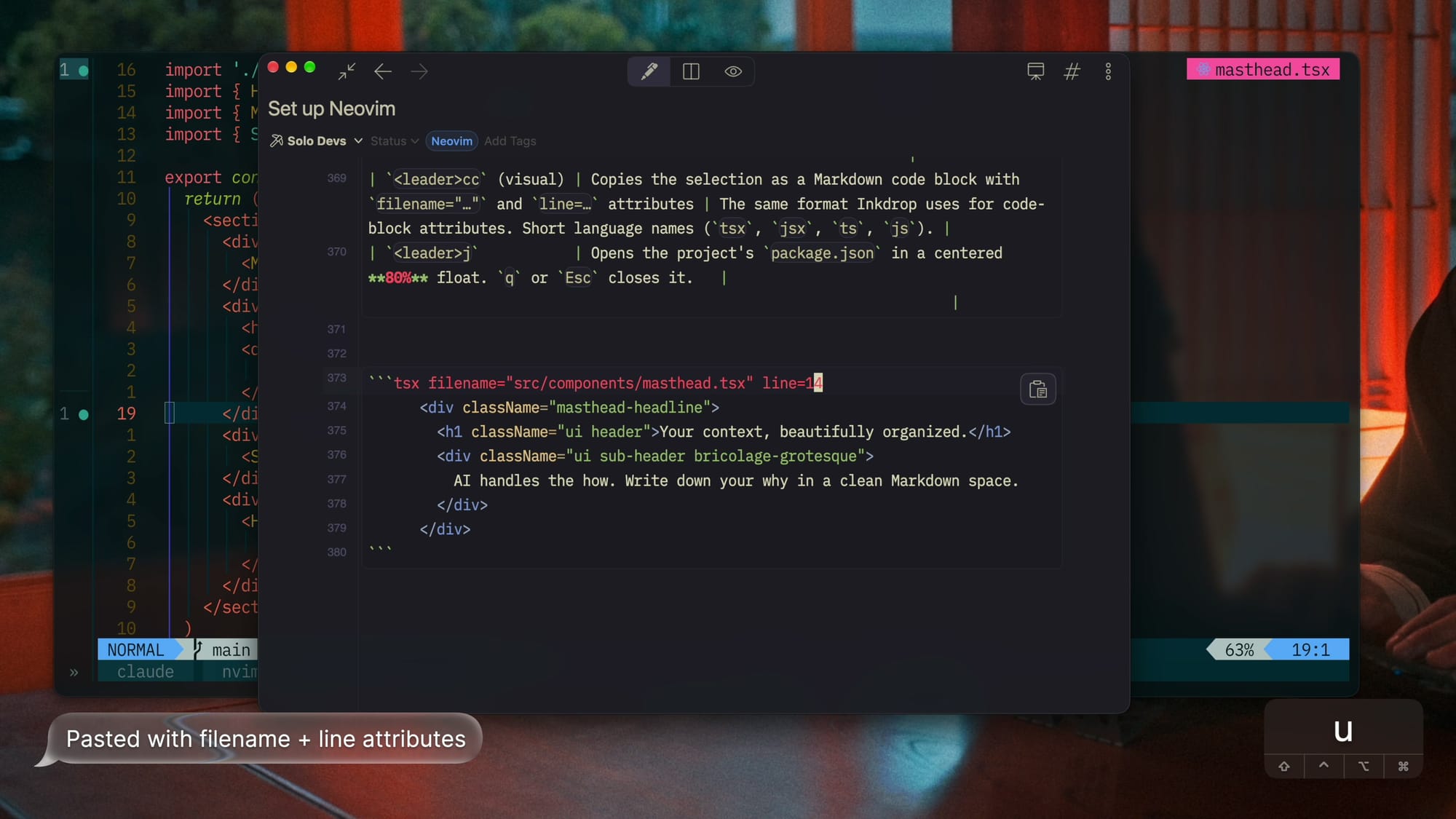
Copies the selection as a Markdown code block with filename="…" and line=… attributes |
The same format Inkdrop uses for code-block attributes. Short language names (tsx, jsx, ts, js). |
<leader>j |
Opens the project's package.json in a centered 80% float. q or Esc closes it. |
Example workflow: Building a tiny app with the new setup
To try the setup in a real agentic workflow, I built a keymap cheat sheet website with Vite+ and my agent.
To show how I use this setup day to day, I built a tiny app with it: a one-page cheat sheet of every keymap in this config.
I followed Inkdrop's note-driven agentic coding workflow.
Each task gets one note, which works as a shared place for me and the agent.
I write the requirements, and the agent fills in the rest of the plan.
1. Scaffold the app
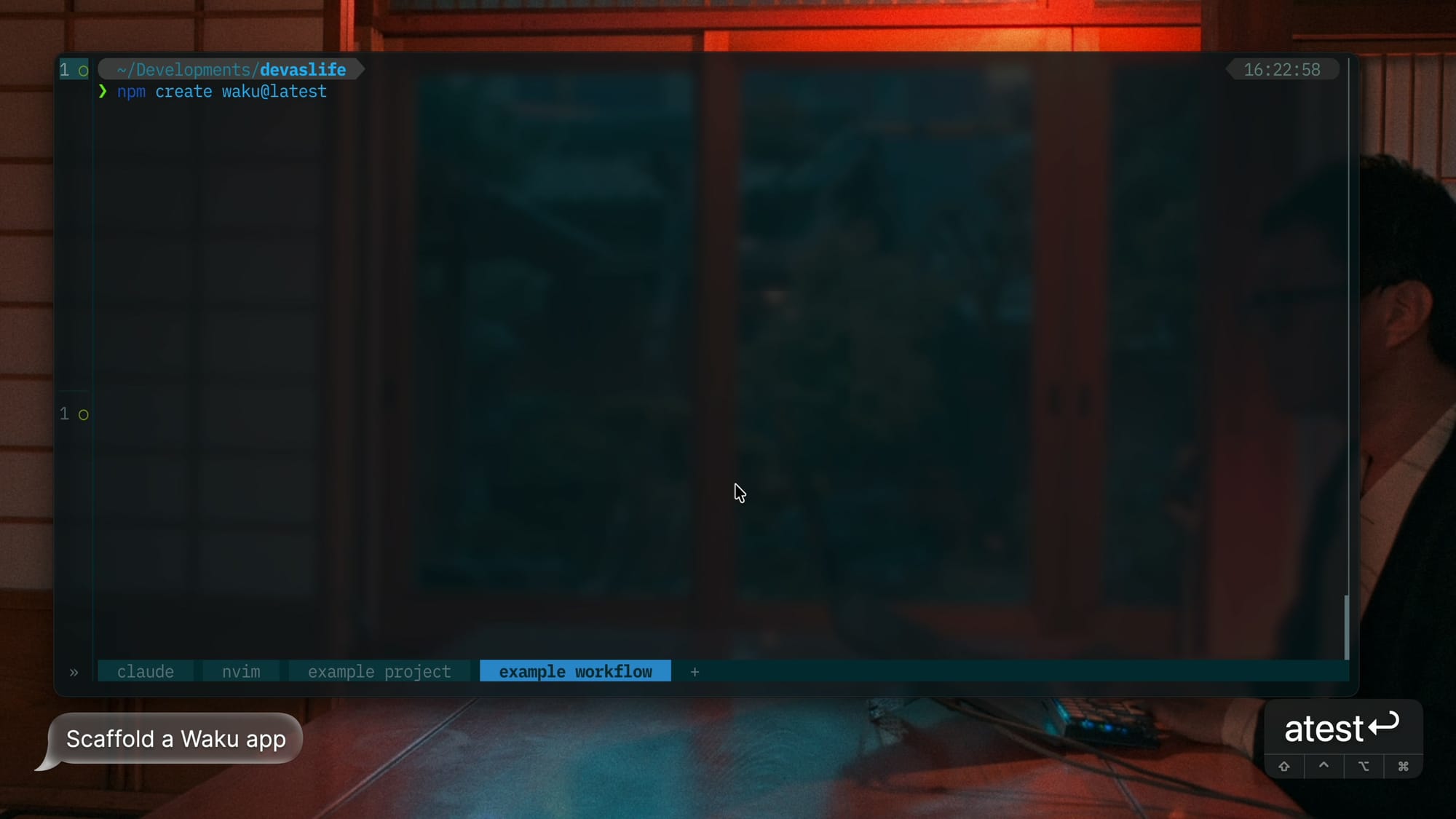
I created a Waku app in ~/Developments/devaslife/keymap-cheatsheet:
npm create waku@latest
2. Write the requirements in a plan note
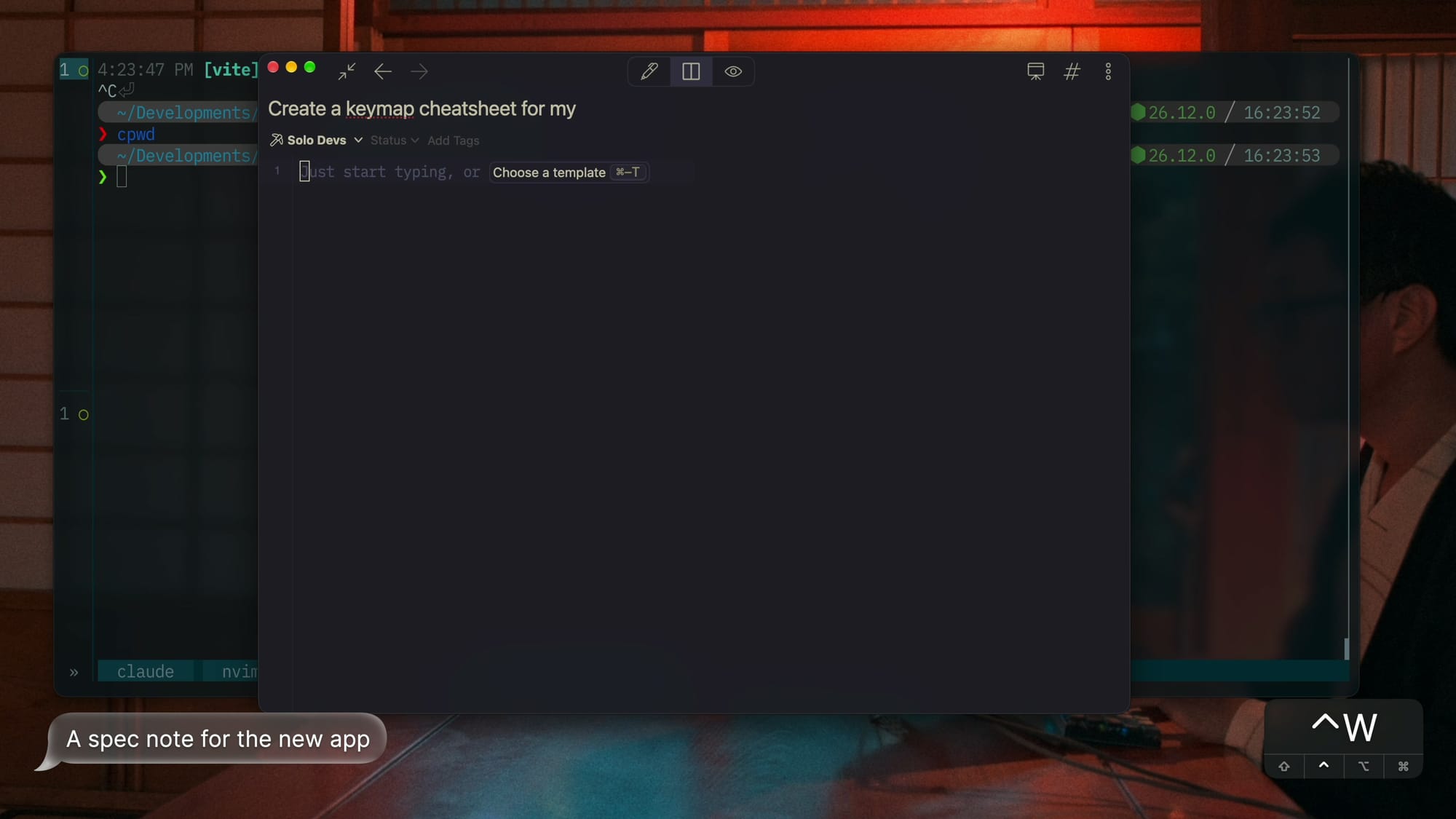
I created a new note and applied the built-in Implementation plan note template with Cmd+T.
- The template starts with Requirements and Related notes sections for me to write.
- The rest is a skeleton for the agent: requirements restatement, current state, decisions, phases, risks, status, and outcome.
- Instructions for the agent live in
> # !Instructionsand> # !Exampleblocks.- Inkdrop strips them from the created note, and the agent reads them from the source template.
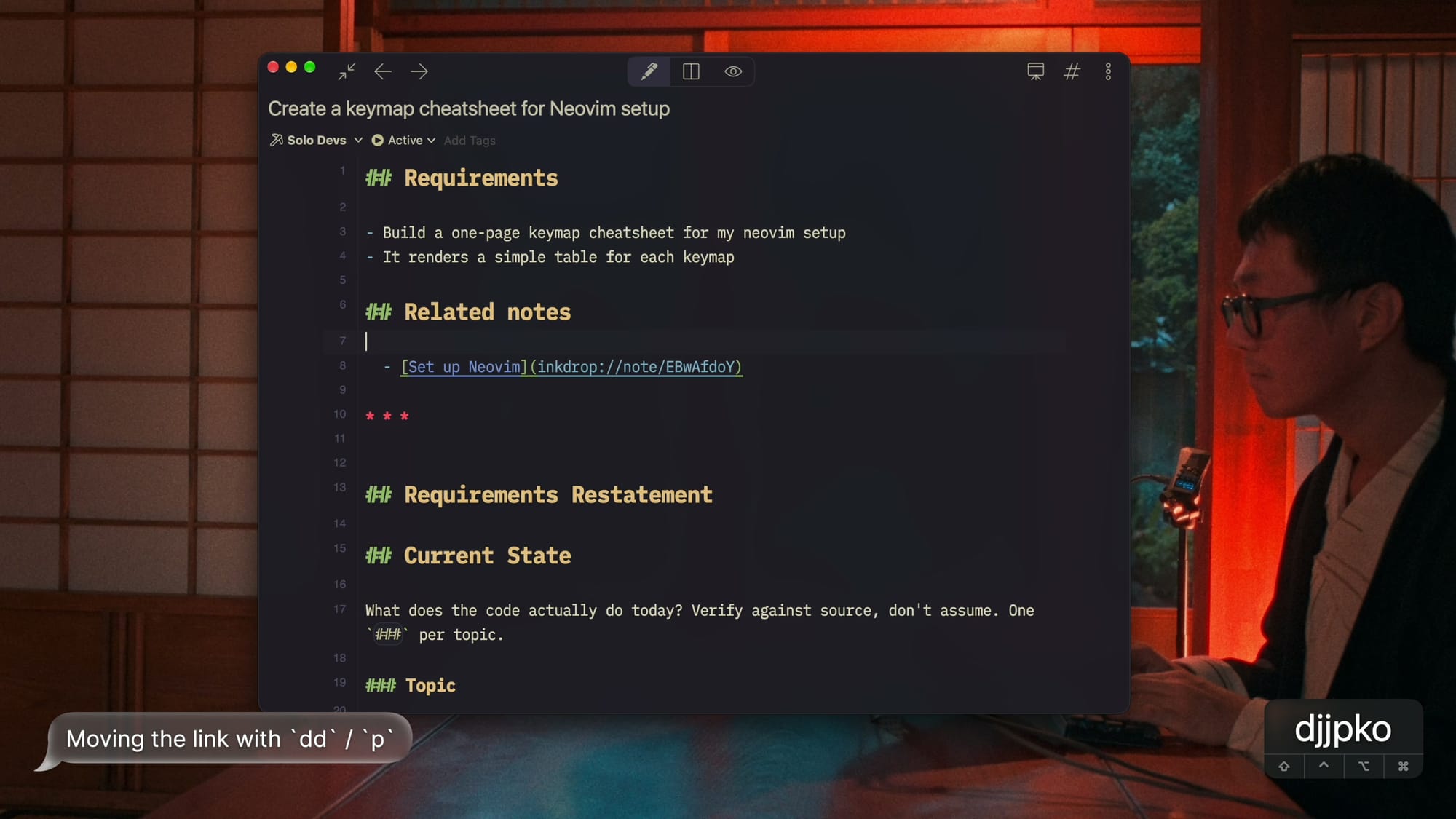
My requirements were just two lines, plus a link to the spec note:
## Requirements

- Build a one-page keymap cheatsheet for my neovim setup
- It renders a simple table for each keymap

## Related notes

- [Set up Neovim](inkdrop://note/…)
3. Let the agent fill out the plan
I copied the note link and passed it to Claude Code:
fill out [Create a keymap cheatsheet for Neovim setup](inkdrop://note/eOuwoieG)
Claude Code reads and updates the note through the Inkdrop MCP server, using the fill-out-template skill.
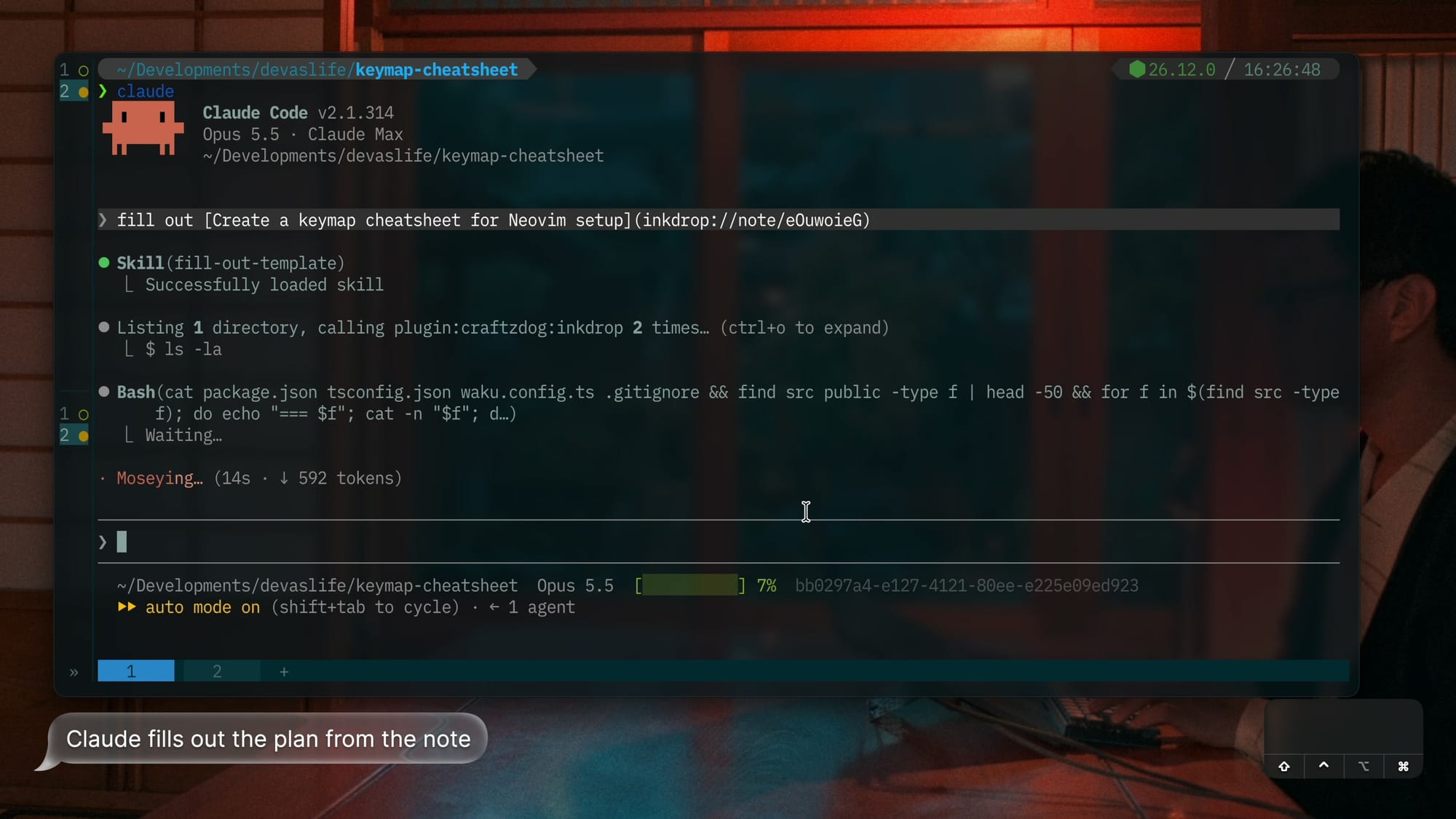
Before writing the plan, it read both the spec note and my actual Lua config.
- It listed where every keymap is defined, with
file:linereferences. - It found mismatches between the spec and the config.
- e.g. the spec had a typo,
:finstead of;f, for finding files.
- e.g. the spec had a typo,
- It decided to trust the config over the spec.
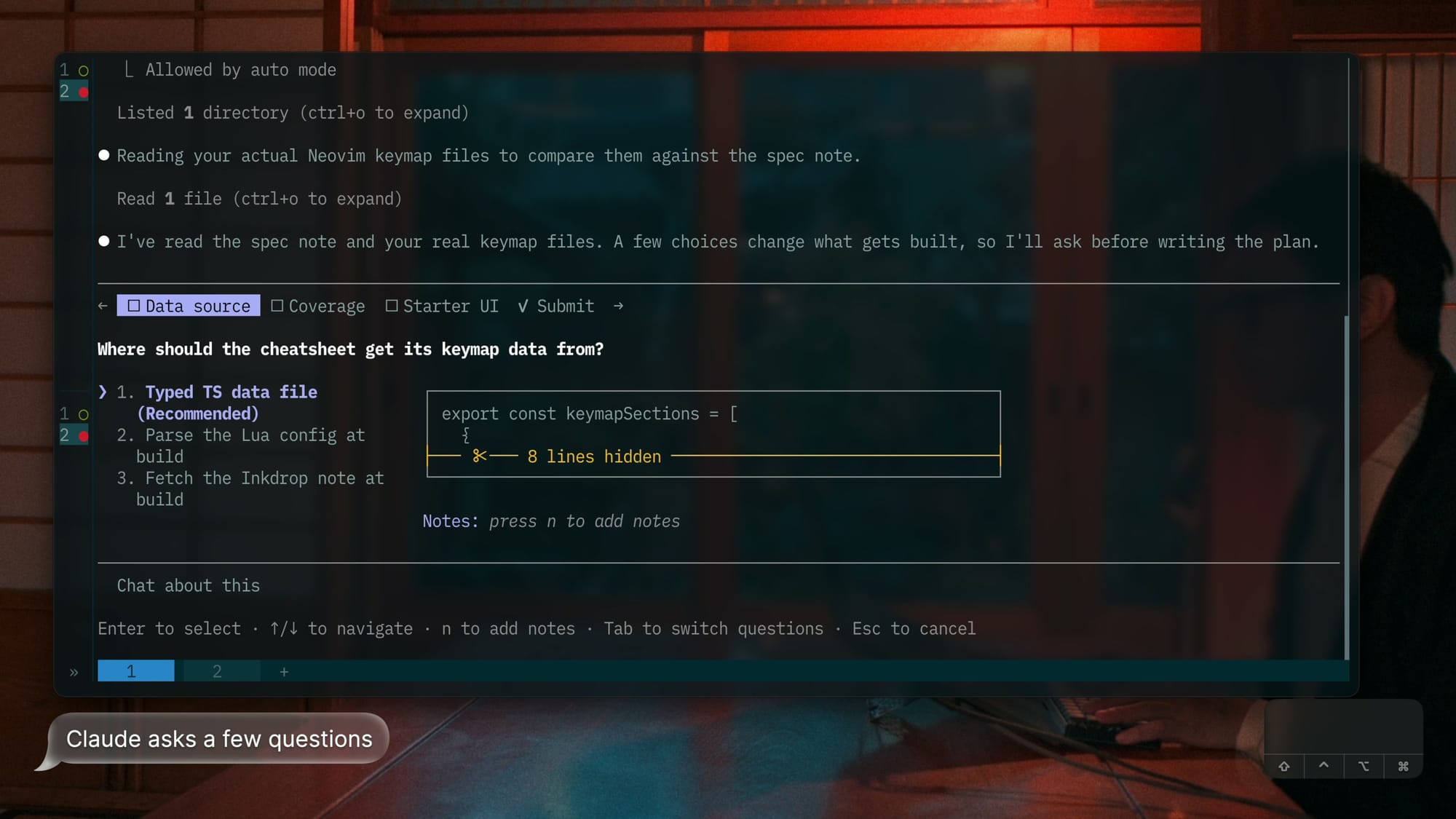
Then it asked me about the decisions only I could make:
| Decision | Question | My pick |
|---|---|---|
| Data source | Where does the page get its keymaps? | A hand-curated, typed TS data file |
| Coverage | Spec tables only, or every key the config maps? | Every mapped key |
| Starter UI | Keep the starter header and footer? | Remove it, so there's one page at / |
It recorded my answers in Decisions Needed and broke the work into three phases:
- Keymap data
- Page and table component
- Remove starter leftovers
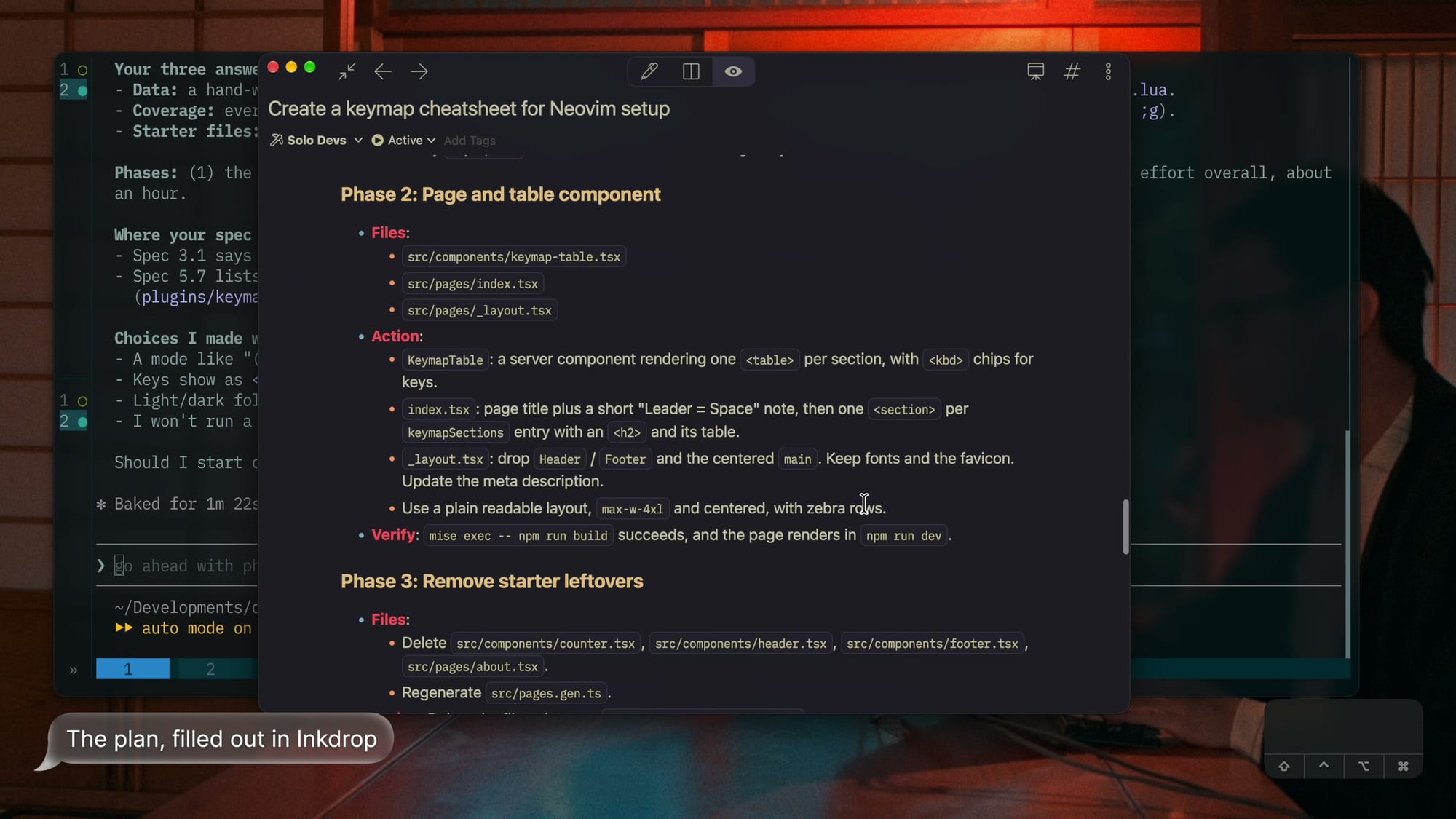
Reviewing a plan is much cheaper than reviewing code, so this is where I spend my attention.
4. Implement it
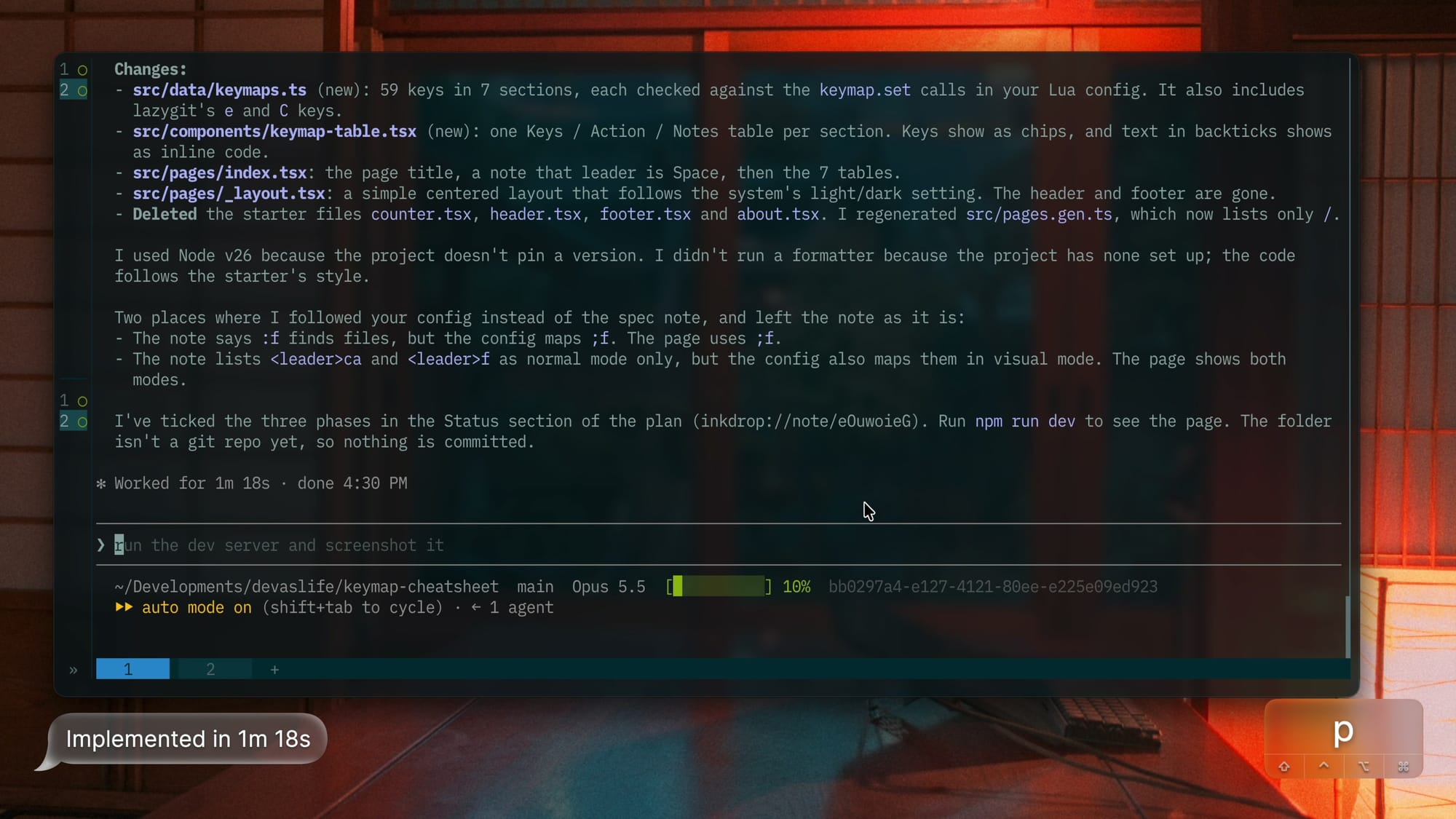
I told Claude Code to work on it, and it implemented all three phases in 1 minute 18 seconds.
It checked off each phase in the note's Status section as it went.
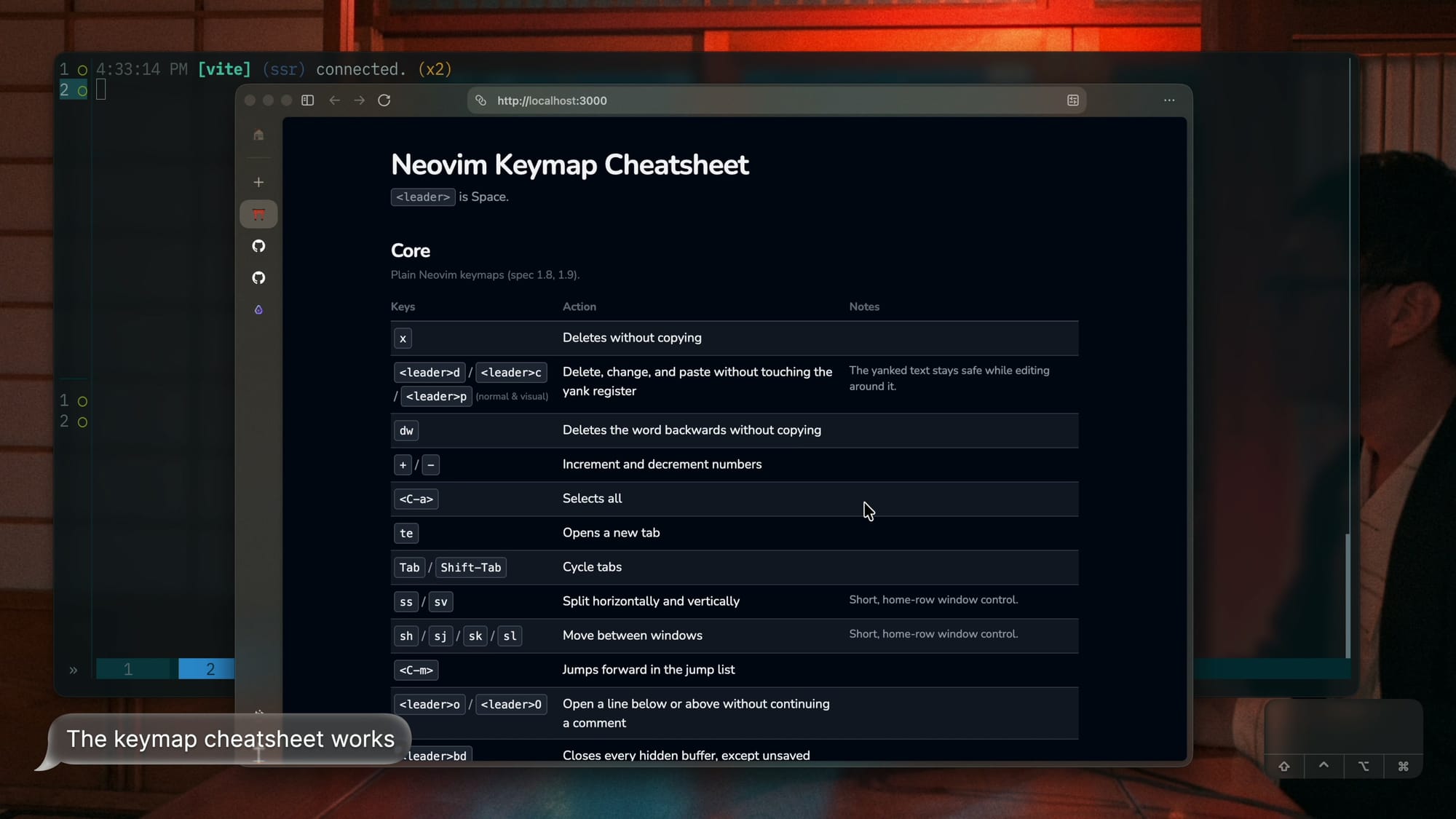
The cheat sheet has 7 sections and 59 keys, with dark mode.
5. Review the code in Neovim
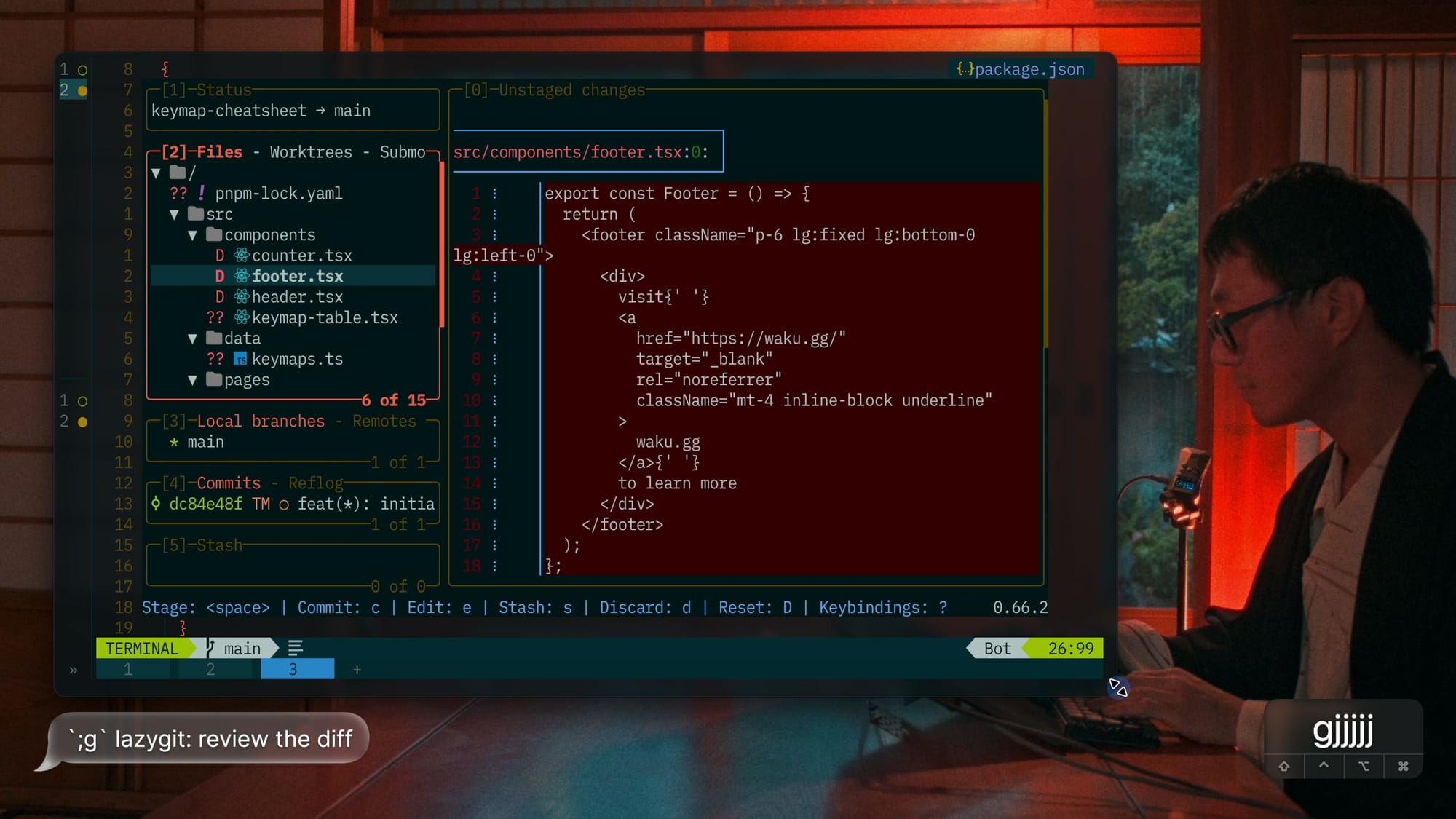
This is where the Git part of my setup comes in:
;g: lazygit, to skim the whole diff<leader>dv: codediff, to walk through each changed file side by side<leader>gd: the mini.diff overlay, to see the changes inside a file
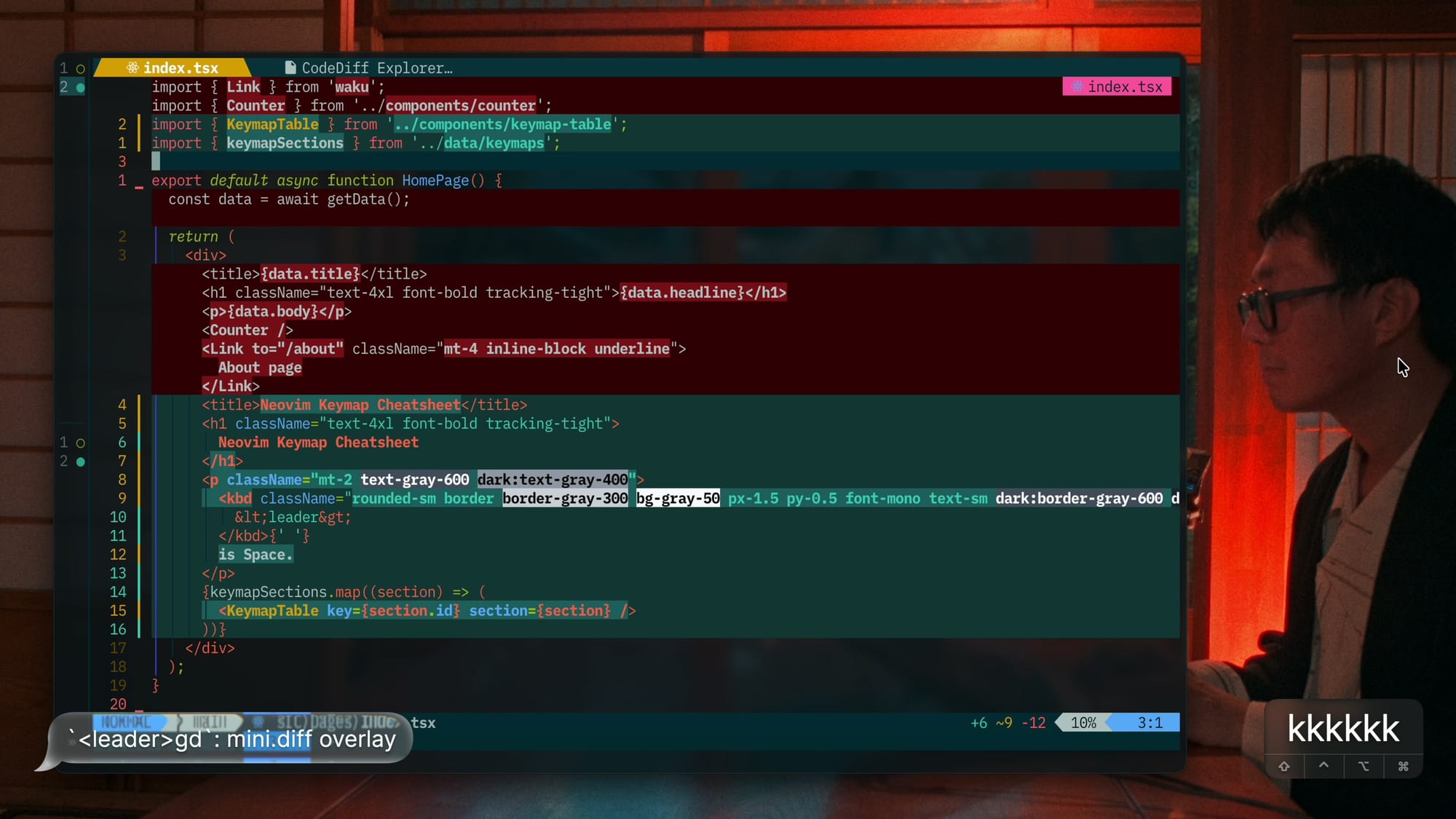
After the review, I switched the project to pnpm and committed it.
6. Record the outcome
Finally, I pasted a screenshot of the working page into Claude Code.
It filled out the note's Outcome and Follow-up sections.
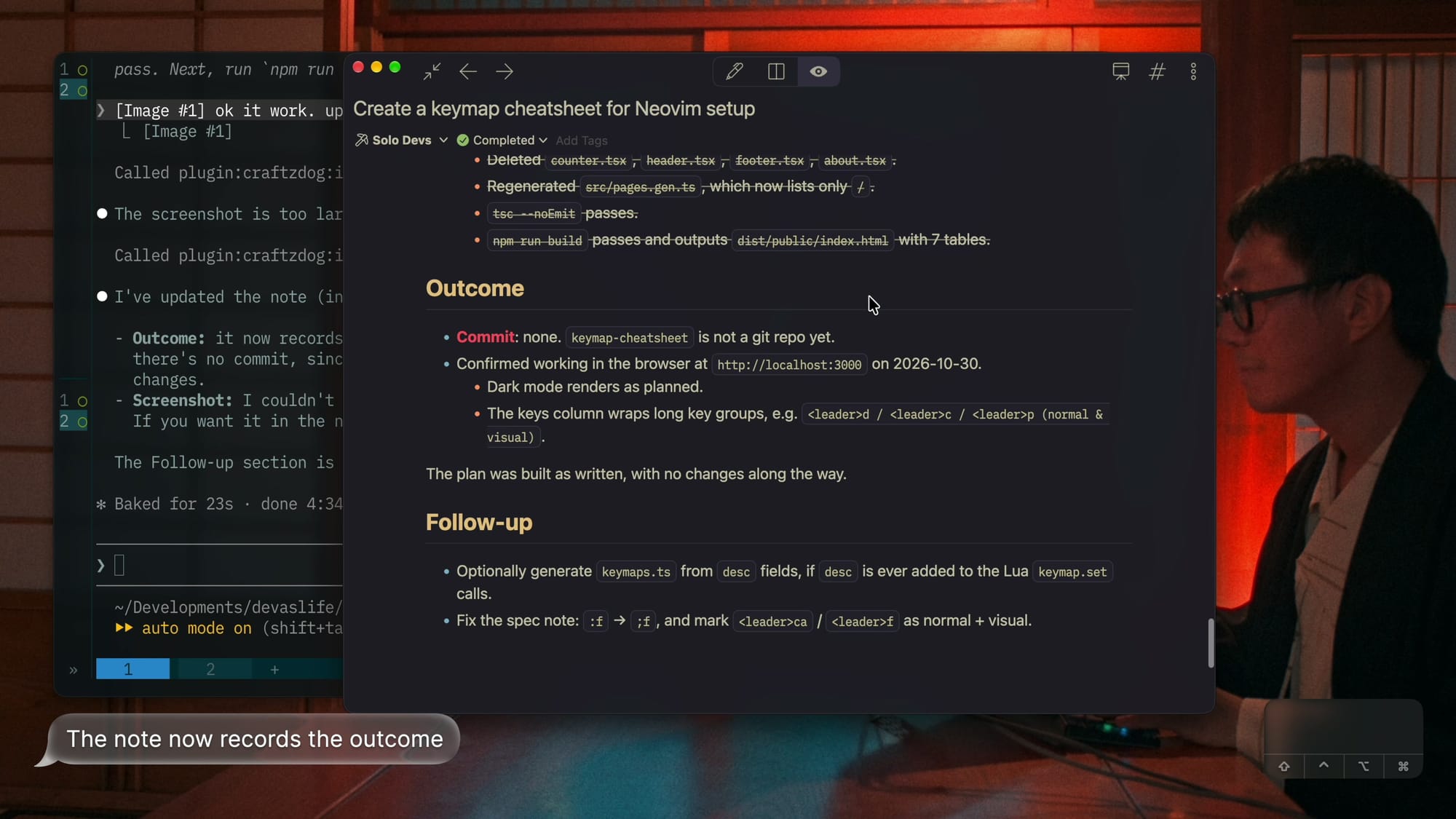
Now the note records what was built and why, including the follow-up to fix the typo in my spec. The finished note: Create a keymap cheatsheet for Neovim setup
Wrapping up
Writing code is very cheap now, so writing the config as a spec in a natural language felt natural. It's English and Japanese for me.
The spec is readable, it keeps the why next to each setting, and I can rebuild or tweak the setup any time by just telling my agent what I want.
The full spec is above, so feel free to copy it and make it your own. I hope it's helpful for your Neovim setup. Thanks for reading/watching!